


Overview
We will explore core practical use cases for ls, the most fundamental and frequently used file listing command in a Linux environment. Moving beyond basic output limitations, we summarize real-world techniques to maximize your workflow efficiency—from checking hidden files and viewing detailed permissions to sorting by timestamp and file size.
1. Basic Listing and Viewing Hidden Files (ls, ls -a)
Execute the mkdir -p ~/ls_demo && cd ~/ls_demo command to create an isolated workspace for practicing ls commands and navigate into that directory.

Execute the touch file1.txt file2.log .hidden_config command to create sample text files and a configuration file for testing regular and hidden file viewing.

The ls command outputs the list of files and directories located in the current directory in its default format.
At this time, hidden files starting with a dot (.) are not displayed on the screen.
⚙️ [Key Options]
-a : Lists all entries, including hidden files and directories starting with a dot (.).-l : Displays detailed information in a long list format, including file permissions, owner, size, and modification date.-h : Converts file sizes into human-readable units (K, M, G) (used in conjunction with the -l option).-t : Sorts and lists entries by modification time, newest first.-S : Sorts and lists entries by file size, largest first.-r : Reverses the sort order.

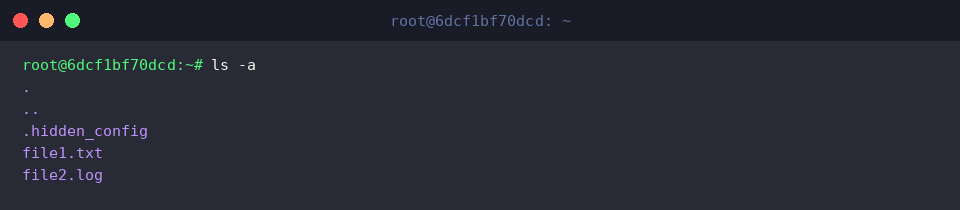
The ls -a command outputs all files, including hidden files and hidden directories.
In the output, you can confirm that ., representing the current directory, .., representing the parent directory, and the hidden configuration file .hidden_config are displayed together.
2. Detailed File Information and Human-Readable File Sizes (ls -l, ls -lh)
Execute the fallocate -l 10M large_file.bin command to create a large 10MB dummy file for testing file size display.

Execute the chmod 644 file1.txt command to change the permissions of file1.txt to 644 (-rw-r--r--) to verify file permission displays.

The ls -l command prints file permissions, number of links, owner, owner group, file size (in bytes), last modification time, and file name in a detailed list format.
You can see that the size of large_file.bin is displayed precisely as a byte-count number, such as 10485760.

The ls -lh command applies the -h option together to convert file sizes into units that are intuitive and easy for humans to read (K, M, G).
In the output, you can confirm that the size of large_file.bin is clearly shown as 10M instead of raw bytes.

3. Sorting by Recent Modifications and Large Files (ls -lt, ls -lS)
Execute the sleep 1 && touch file2.log command to update the file’s last modification time and set up the environment for practicing chronological sorting.

The ls -lt command uses the -t option to sort files by their most recent modification time and prints them alongside detailed information.
You can see that the file2.log file, whose modification time was just updated, is located at the very top of the list.

The ls -ltr command adds the reverse sort option -r to invert the output order, listing files from oldest modified to newest.
Because the most recently modified file file2.log appears on the very last line of the terminal screen, this is useful when you want to quickly check the latest log files in a directory with many files.

The ls -lhS command applies both the file size sorting option -S and the unit conversion option -h to sort files in descending order starting from the largest file.
The 10MB file large_file.bin appears at the very top of the list, allowing you to quickly identify large files consuming significant disk space.

4. Viewing Directory Metadata and Recommended Practical Alias Configuration (ls -ld, alias)
Execute the mkdir -p test_dir command to create a test directory for practicing directory metadata inspection.

The ls -ld test_dir command uses the -d option to output detailed information about the directory itself rather than its contents.
You can check the directory’s access permissions, number of links, owner, and creation time at a glance.

Execute the alias ll='ls -alFh --color=auto' command to bundle frequently used detailed ls options into a shortcut command.
This sets up an alias that includes hidden files, displays file type indicators, uses human-readable file sizes, and enables color highlighting.

Running the ll command displays the entire file list of the current directory in detailed format at once according to the previously configured alias.
It boosts practical workflow efficiency by allowing you to easily check directory status without typing long options every time.

So far, we have covered the key options and practical tips for the Linux ls command used daily in production environments.
Familiarize yourself with these frequently used options to significantly boost your terminal productivity.