


Overview
When you need to quickly extract specific columns from large log files or CSV data in a Linux environment, the cut command is the lightest and most powerful tool available. In this guide, we will explore essential hands-on techniques, from delimiter-based field extraction to fixed-width byte/character slicing, that you can immediately apply in real-world scenarios.
Extracting CSV and System Account Data Using Delimiters (-d) and Fields (-f)
Run the command mkdir -p ~/cut_demo && cd ~/cut_demo to create a dedicated directory for hands-on practice with the cut command and navigate into it.

Create a sample comma-separated (,) user data file by running the echo command to write the users.csv file.

The cut command is a tool used to extract specific columns (fields), byte ranges, or character sections based on a defined delimiter from text files or command output.
By using the -d option to specify a comma (,) as the delimiter and the -f option to select the second and fourth fields, we can cleanly output only the name and department information from the users.csv file.
⚙️ [Key Options]
-d : Specifies the delimiter to use when splitting fields (defaults to the tab character).-f : Specifies the field (column) numbers or ranges to extract.-c : Slices data based on character positions instead of bytes.-b : Slices data based on byte positions.--complement : Inverts the selection, outputting everything except the specified fields or character ranges.-s : Suppresses lines that do not contain the delimiter from the output.--output-delimiter : Changes the field delimiter used when displaying output results to a desired string.

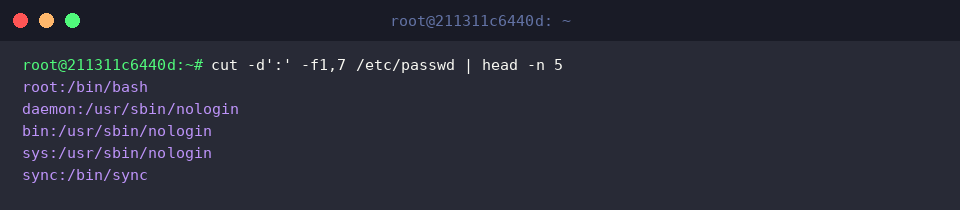
From the /etc/passwd file containing Linux system account information, extract only the username (field 1) and default shell path (field 7) based on the colon (:) delimiter, then check only the first 5 lines using the head command.
Combining the cut command with pipes (|) like this makes it easy to monitor only the essential column data needed from vast system configuration files.
Handling Fixed-Width Logs with Byte (-b) and Character (-c) Slicing
Run cd ~/cut_demo to navigate to the previously created working directory and continue the practice.

To practice fixed-width character slicing, create a sample log file service.log recorded in a uniform format containing dates, times, and log levels.
![echo -e ‘2026-10-07 14:00:01 [INFO] Service started\n2026-10-07 14:00:05 [WARN] High memory usage\n2026-10-07 14:00:12 [ERROR] Connection timed out’ > service.log](/ubuntu/20261007_145511_102/captures/s02_c02_echo_-e__2026-10-07_14_00_01__INFO__Service_starte.png)
Specify the -c1-10 option with the cut command to cut characters 1 through 10 of each line, cleanly extracting only the year-month-day date information.

Use the -c12-19 option to precisely extract and display only the HH:MM:SS timestamp range located between the 12th and 19th characters of the log file.

By omitting the end position, such as -c22-, you can slice all remaining text from character 22 to the end of each line at once to extract the log message section.

Modifying the Output Delimiter (–output-delimiter) and Inverting Selection (–complement)
Run the command cd ~/cut_demo to navigate to the directory where the practice files were created earlier.

The --output-delimiter option allows you to specify a custom string to display between extracted fields instead of the default delimiter.
Extract fields 2 and 3 from the comma-separated (,) users.csv file and insert a space-padded pipe (|) symbol between them to enhance readability.

Using the --complement option inverts the selection, outputting all columns except the selected fields.
When used alongside the -f3 option, it cleanly omits only the 3rd field (role information) while leaving the remaining fields intact in the output.

Real-World Pipeline Integration: Combining cut, sort, and uniq for Access IP Statistics Analysis
Run cd ~/cut_demo to navigate to the previously created directory to continue the practice.

To simulate the analysis of web server client requests, create a sample log file access.log containing space-separated client IPs and HTTP request data.
![echo -e ‘192.168.1.10 - - [07/Oct/2026] “GET /index.html” 200\n192.168.1.15 - - [07/Oct/2026] “POST /login” 401\n192.168.1.10 - - [07/Oct/2026] “GET /dashboard” 200\n10.0.0.5 - - [07/Oct/2026] “GET /api/v1” 200\n192.168.1.10 - - [07/Oct/2026] “POST /logout” 200’ > access.log](/ubuntu/20261007_145511_102/captures/s04_c02_echo_-e__192_168_1_10_-_-__07_Oct_2026___GET__inde.png)
Using the -d' ' -f1 options of the cut command, isolate only the first column—the client IP address—based on spaces.
Next, pipe the result into sort, count duplicate occurrences with uniq -c, and chain sort -nr to derive a statistical ranking sorted in descending order by most frequent access IP.

We have explored how to use the cut command to cleanly extract only the necessary columns from log and CSV data.
Leverage delimiters and field options effectively to make your everyday text processing and data manipulation tasks significantly more efficient.