


Overview
In environments with limited server resources, running background tasks or heavy batch scripts can degrade the responsiveness of core services. In this post, we will explore practical tips for managing CPU scheduling priority using the nice and renice commands to maintain system stability.
1. Checking Process Priority (NI/PR) and Setting Up an htop Monitoring Environment
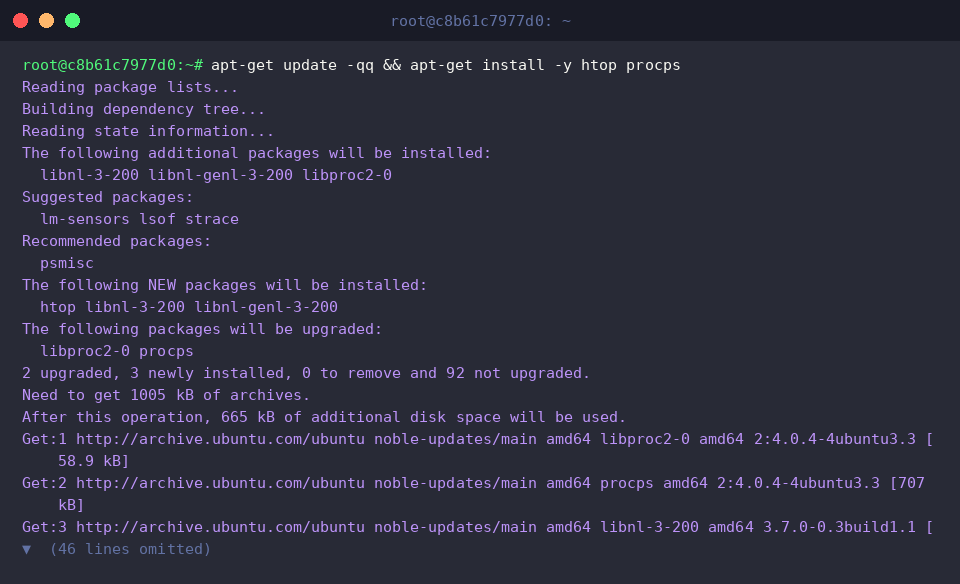
Install the essential htop and procps packages to set up the practice environment for monitoring process priority.
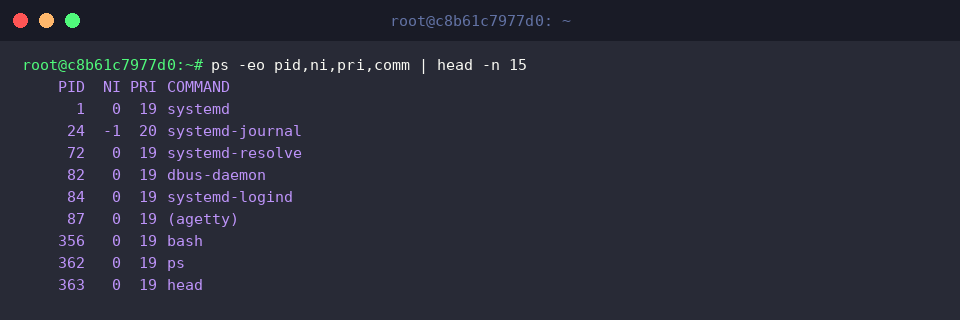
The ps command checks detailed information and priority values of processes currently running on the system.
In the output, NI indicates the user-adjustable nice value, while PRI represents the actual priority assigned by the kernel scheduler.
⚙️ [Key Options]
-e : Selects and displays all processes running on the system.-o : Customizes the output column format (e.g., pid, ni, pri, comm).-u : Filters and outputs processes owned by a specific user.-p : Queries only the processes matching the specified PID (Process ID).-f : Displays a full-format listing containing detailed process information.
2. Running Low-Priority Background Tasks with the nice Command
Create a temporary working directory and navigate to it to safely generate and manage test files needed for the practice.

Using the nice command, specify a nice value of 10 to lower its priority—yielding CPU resource utilization—and run a large file creation task in the background (&).

Combine the ps command with grep to check the PID of the running dd process and verify whether the applied nice value (NI) is configured as intended.

3. Dynamically Changing the Priority of Running Processes with the renice Command
To practice changing priorities in real time, launch a sleep process running for 300 seconds in the background (&).

Store the process ID (PID) of the most recently executed background process in the environment variable TARGET_PID using the special variable $!.

Check the current nice value (NI) of the target process using the ps command, confirming that it is running with the default value of 0.

Use the renice command to change the nice value of the running target process to 15, lowering its priority.
From the output, you can confirm that the existing priority (old priority 0) has been successfully changed to the new priority (new priority 15).

Query the target process again with the ps command to confirm that the nice value (NI) of 15 has been applied immediately.

Terminate the test process forcefully (kill -9) after completing the practice to clean up system resources.

4. Granting High Priority (Negative nice) with root Privileges and Cautions
Run a prioritized process in the background (&) using sudo administrative privileges to apply a negative nice value (-5), which cannot be set by standard users.
Processes assigned negative nice values receive higher execution priority during CPU scheduling, allowing them to be allocated system resources intensively.

Query the running process with the ps command to verify that the nice value (NI) of the target process (sleep) has been correctly applied as -5.
Unlike regular default processes (0), the output confirms that a negative nice value (-5) is set and the process runs with high priority.

So far, we have covered how to adjust process priority using the nice command, which is useful when a Linux server experiences sluggish performance.
When server resources are scarce, assign appropriate priorities tailored to each situation to operate your system much more stably and smoothly.