


Overview
Explore essential usage of the ls command, the most basic yet frequently used command in Linux environments, along with hands-on practice. From listing basic files to viewing hidden files, analyzing permissions, sorting, and extending to tree views, we have organized the essential options step-by-step for immediate practical use.
Listing Basic Files and Viewing Hidden Files (ls, ls -a)
Execute mkdir -p ~/ls_practice && cd ~/ls_practice to create a dedicated workspace for the ls command practice and navigate to that directory.

Execute touch file1.txt file2.txt .hidden_config to create standard text files and a hidden configuration file to use for practice.

The ls command is the most fundamental command for checking the list of files and directories located in the current directory.
When executed without any options, only standard entries are displayed, excluding hidden files starting with a dot (.).
⚙️ [Key Options]
-a : Displays all entries, including hidden files and directories starting with a dot (.).-l : Displays detailed information in long listing format, such as file permissions, owner, file size, and modification time.-h : Converts file sizes into human-readable units (K, M, G, etc.) for display (used in conjunction with the -l option).-t : Sorts and displays files in order of most recently modified time.-S : Sorts and lists files in descending order of file size.-R : Recursively lists the contents of subdirectories as well.

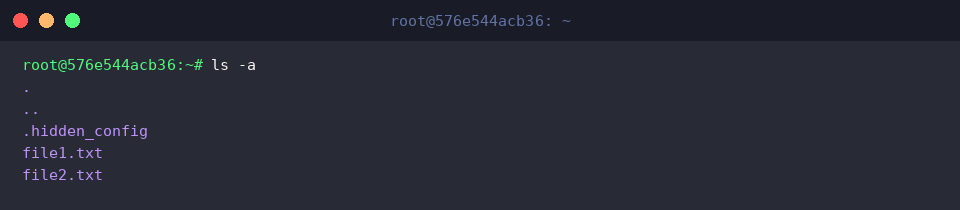
The ls -a command inspects all entries within the current directory, including hidden files starting with a dot (.).
In the execution results, . representing the current directory, .. representing the parent directory, and the previously created hidden file .hidden_config are displayed.
File Details and Permission Analysis (ls -l, ls -lh)
Execute fallocate -l 10M ~/ls_practice/sample_large.dat to create a 10MB test file to compare differences in size display.

The ls -l command outputs detailed information in a long listing format, including file permissions, owner, group, file size (in bytes), and last modification time.
By default, file sizes are displayed as raw byte numbers, making it difficult to gauge large file sizes at a glance.

The ls -lh command combines the -h (human-readable) option to convert and display file sizes in easily readable units such as KB, MB, and GB.
You can verify that the size of the previously created large file is intuitively displayed as 10M instead of a byte count.

Utilizing Time and Size Sorting Options (ls -lt, ls -lS)
To practice sorting by time, execute touch -d '2 days ago' ~/ls_practice/old_file.txt to create an older file old_file.txt with a modification timestamp from two days ago.

Execute touch ~/ls_practice/recent_file.txt to create recent_file.txt, representing the most recently modified file for comparison.

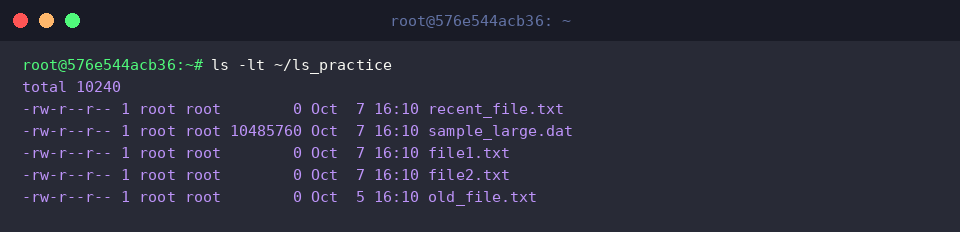
The ls -lt command combines the -t option to sort and display files in descending order of modification time (newest first).
You can see that the newly created recent_file.txt is located at the top of the list, while old_file.txt, set to two days ago, is displayed at the bottom.
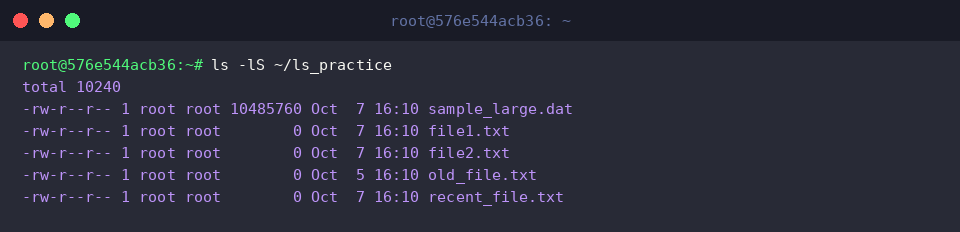
The ls -lS command uses the uppercase -S option to sort and list files in descending order of file size.
The 10MB sample_large.dat file appears at the very top, allowing you to quickly identify large files taking up substantial space in the directory.
Directory Structure Visualization and Wildcard Filtering (tree, ls *.txt)
To practice exploring hierarchical directory structures, execute mkdir -p ~/ls_practice/subdir/inner && touch ~/ls_practice/subdir/inner/note.log to create nested subdirectories and a sample log file.

The ls ~/ls_practice/*.txt command utilizes the wildcard character (*) to selectively filter and display only files with the .txt extension.
You can cleanly verify the list of text files while excluding large data files and subdirectories.

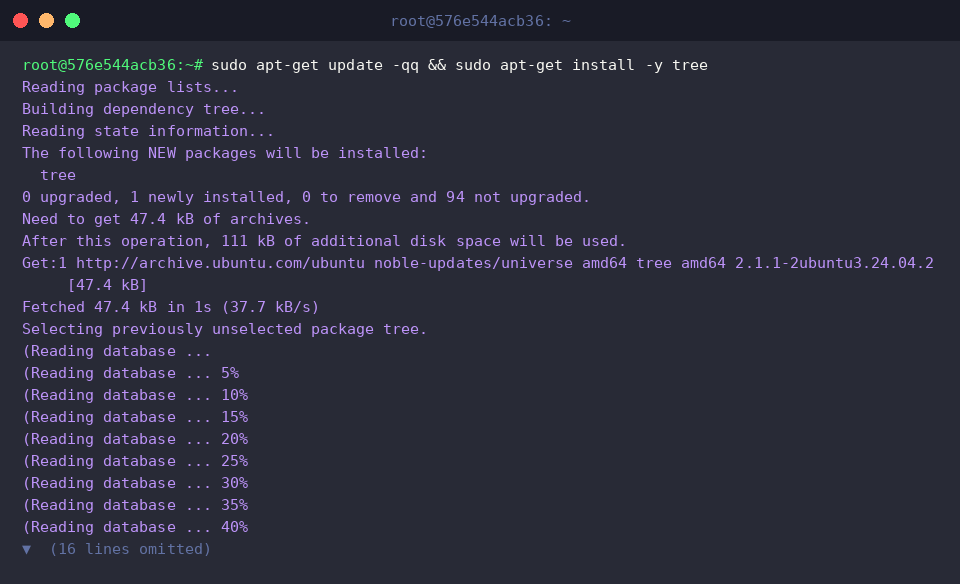
To visualize and inspect the directory structure in a tree format, install the tree package using sudo apt-get update -qq && sudo apt-get install -y tree.
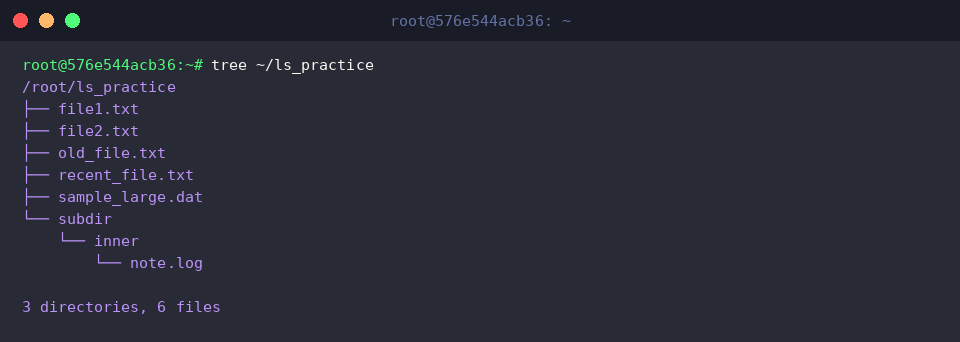
The tree ~/ls_practice command outputs a tree diagram that lets you understand the structure of subfolders and files in the specified directory at a glance.
You can intuitively check the total count and hierarchical relationship of files and directories, including the nested subdir/inner/note.log path.
We have covered everything from essential option combinations of the useful ls command in Ubuntu environments to practical tips.
Familiarize yourself with the options suited to each scenario to make your terminal workflow faster and more efficient.