


Overview
In a Linux environment, quickly finding and processing files is a fundamental and essential skill for server management and development. In this article, we will explore the find command step by step through hands-on practice, covering everything from basic search options to file size/modification time searches and batch operations on search results (-exec).
Setting Up the Practice Environment and Basic Filename Searches
Run the command mkdir -p ~/find_lab/docs ~/find_lab/logs ~/find_lab/backup && cd ~/find_lab to create dedicated directories for practicing the find command and navigate to that location.

Run the command touch docs/app.log docs/guide.txt logs/error.log logs/access.log backup/data.bak to create sample files with various extensions to use for search testing.

The find command recursively searches all files and directories under the specified directory path according to defined conditions.
Running the command find . -name "*.log" searches for and displays paths for all files ending with the .log extension relative to the current directory (.).
To prevent wildcard characters (*) from being expanded by the shell beforehand, enclose the search pattern in double quotes.
⚙️ [Key Options]
-name : Searches for items matching the specified file name or pattern (case-sensitive).-iname : Searches for items matching the specified file name or pattern (case-insensitive).-type : Specifies the file type to search for (f for regular files, d for directories).-size : Searches based on file size (+ for greater than, - for less than).-mtime : Searches based on the file modification time in days.-empty : Searches for empty files or empty directories.-exec : Executes a specified Linux command on each found file.-delete : Immediately deletes files matching the search conditions.

To search for a filename regardless of case, run the command find . -iname "GUIDE.TXT" using the -iname option.
Even though the actual filename is in lowercase as guide.txt, it matches the uppercase search condition and the file path is retrieved normally.

Finding Large Files by File Type and Size Criteria
Run the command truncate -s 15M ~/find_lab/backup/large_archive.iso to create a 15MB sample large file for testing size-based searches.

Run the command truncate -s 2M ~/find_lab/logs/big_trace.log to create a 2MB sample log file for additional size comparison practice.

Run the command find ~/find_lab -type d with the -type d option to filter and search only directory paths, excluding regular files.
Only the list of all directories existing under the specified path is cleanly displayed.

Run the command find ~/find_lab -type f -size +10M -exec ls -lh {} + to locate regular files (-type f) exceeding 10MB (-size +10M) and view their detailed information.
The 15MB large_archive.iso file matching the condition is found and displayed along with its detailed permissions and size information.

Finding Modified Files Based on Time Conditions (mtime/mmin)
Run the command touch -d "2 days ago" ~/find_lab/backup/old_backup.tar to create an older sample file modified two days ago for time-based file search practice.

Run the command touch ~/find_lab/logs/recent.log to create a sample file with the current timestamp for testing recent file searches.

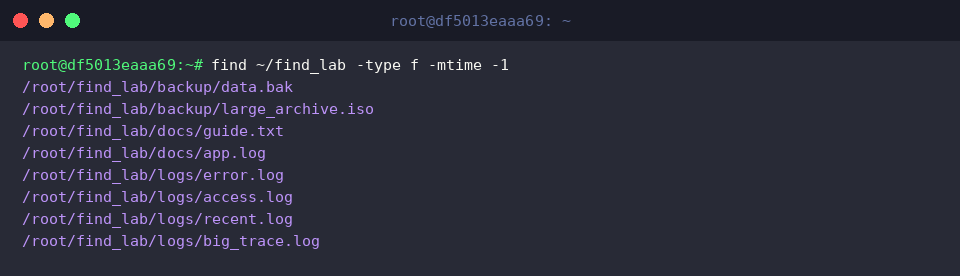
Run the command find ~/find_lab -type f -mtime -1 with the -mtime -1 option to search for regular files modified within the last 24 hours.
The list of all files created or modified within the reference time (24 hours) is displayed properly.
Run the command find ~/find_lab -type f -mtime +1 with the -mtime +1 option to search for older files modified more than 24 hours (1 day) ago.
Only the old_backup.tar file, created with a date from two days ago, is accurately filtered and displayed.

Batch Control of Search Results: -exec Option and Deletion Handling
Run the command mkdir -p ~/find_lab/temp && touch ~/find_lab/temp/cache1.tmp ~/find_lab/temp/cache2.tmp to create a temporary directory and sample temporary files for practicing batch control and permission changes.

Run the command find ~/find_lab/temp -name "*.tmp" -exec chmod 644 {} \; with the -exec option to batch-change the permissions of all found .tmp files to 644.
The {} placeholder is replaced by the path of each found file, and \; designates the end of the command passed to -exec.

Run the command ls -l ~/find_lab/temp to verify that the permission changes were properly applied.
From the output, you can see that both temporary files have been modified with read and write permissions (-rw-r--r--, 644).

Run the command find ~/find_lab/temp -name "*.tmp" -exec rm -f {} \; combining the rm -f command to batch-delete .tmp files matching the search criteria.
The targeted files found are removed all at once without any additional confirmation prompt.

Run the command ls -la ~/find_lab/temp to make a final check that all temporary files were properly deleted.
Only the current directory (.) and parent directory (..) remain, showing that all created temporary files have been cleanly deleted.

In this guide, we covered the core search options of the Linux find command along with practical batch-processing techniques ready for production use.
Try combining these options according to your specific needs to make file searching and management tasks significantly more efficient.