


Overview
Explore the inner workings of the tar command, the most widely used tool for bundling and compressing large files and directories in Linux environments. Understand the fundamental differences between archiving and compression, and master essential options through hands-on terminal practice.
Basic Concepts of tar: The Difference Between Archiving and Compression
Create a practice directory and sample text files to proceed with the tar archive walkthrough.

The tar command is used to bundle multiple files and directories into a single archive file or extract them.
Combine the -c, -v, and -f options along with the -C option to bundle the sample directory into an archive.tar file.
⚙️ [Key Options]
-c : Creates a new archive file.-x : Decompresses or extracts the contents of an archive file.-t : Lists the files contained inside the archive.-v : Verbosely displays the progress of archive creation or extraction on screen.-f : Specifies the archive filename to work with.-z : Compresses or decompresses using the gzip algorithm (.tar.gz).-j : Compresses or decompresses using the bzip2 algorithm (.tar.bz2).-J : Compresses or decompresses using the xz algorithm (.tar.xz).-C : Specifies the target directory path for the archive operation.

Check the detailed information of the generated archive.tar file and the source directory using the ls -lh command.
Because this is simply an archive bundled into one file, it has not undergone any compression to reduce file size.

Practical Compression Options: Combining gzip (-z) and bzip2 (-j)
Add the gzip compression option -z to bundle and compress the sample directory simultaneously into a .tar.gz file.
This is the most widely adopted method in production environments, offering fast compression speeds and decent compression ratios.

Specify the bzip2 compression option -j to archive and compress the sample directory into a .tar.bz2 archive.
While it takes longer to process compared to gzip, it generally yields a higher compression ratio.

Run the ls -lh ~/tar-demo/*.tar* command to view the list and sizes of the generated archive files.
Compare them with the uncompressed plain archive (archive.tar) to see the size differences achieved by the compression algorithms.

Previewing Files Inside an Archive (-t) and Safe Verification
Run the tar -tvf ~/tar-demo/archive.tar.gz command to preview the internal file structure and directory paths before extracting.
Pairing the -t option with -v for verbose output lets you safely inspect permissions, ownership, file sizes, and directory structures without actually decompressing the files.

Extracting Safely to a Desired Path (-x and -C)
Run the mkdir -p ~/tar-demo/extracted command to create a dedicated directory for safe extraction.

Use the -x and -C options to extract the archive into the specified destination path without cluttering your current working directory.
Use -z to decompress gzip and -v to monitor the list of extracted files in real time.

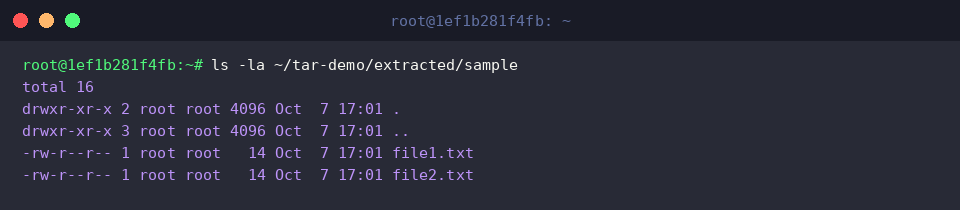
Run the ls -la ~/tar-demo/extracted/sample command to confirm that the files inside the archive were successfully extracted to the target directory.
The output verifies that file ownership and permissions have been fully restored exactly as they were when the archive was created.
We have covered everything from the core principles of the Linux tar command to practical compression and extraction examples frequently used in real-world workflows.
Leverage the right options for your specific scenarios to manage files and backups more efficiently in Linux environments.