


Overview
This guide covers the fundamental concepts and core techniques of SSH (Secure Shell), an indispensable tool for Linux server administration and remote work. From installing the client package and establishing basic remote connections to generating secure SSH key pairs, configuring passwordless authentication, managing practical SSH config profiles, and mastering port forwarding techniques, everything is explained in an easy-to-follow, step-by-step terminal walkthrough.
1. Checking the SSH Client and Basic Remote Connection
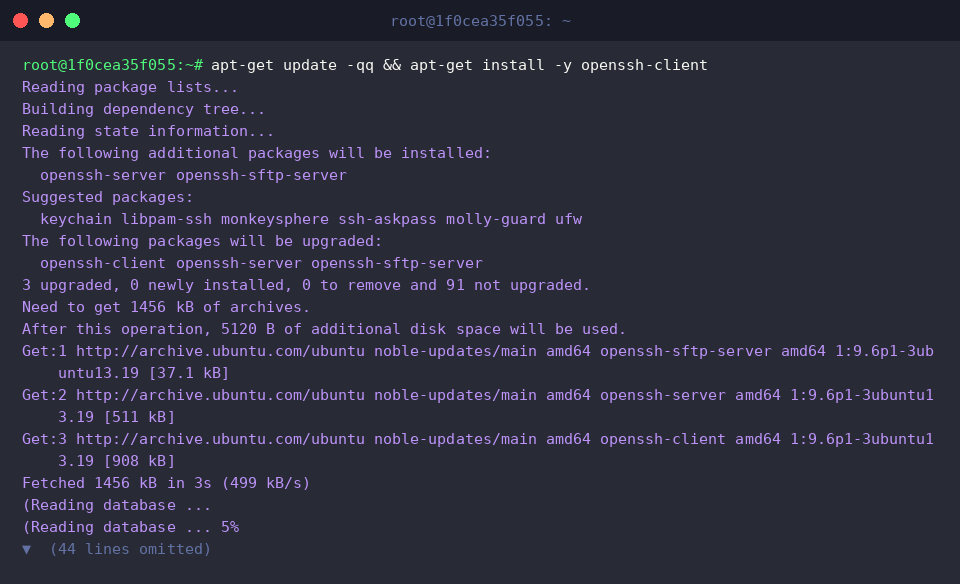
To proceed with the SSH remote connection hands-on practice, install the openssh-client package and ensure it is updated to the latest version.
The ssh -V command checks the version information of the OpenSSH client installed on the system.
⚙️ [Key Options]
-p : Specifies a custom port number used by the remote server instead of the default port 22.-i : Specifies the path to the private key file used for authentication instead of a password.-v : Enables verbose mode to display debugging messages regarding the connection process and troubleshooting details.-C : Enables compression during data transmission to save network bandwidth.-o : Specifies configuration options (e.g., ConnectTimeout) directly on the command line that are typically defined in ~/.ssh/config.-L : Sets up local port forwarding to forward traffic to a remote network service.-R : Sets up remote port forwarding to allow the remote server to access local services.

The ssh -p 22 -o ConnectTimeout=5 [email protected] command attempts to connect to the specified remote host on port 22 with a 5-second connection timeout.
This prevents hanging indefinitely during connection delays and allows you to quickly verify the connection status.

2. Generating an SSH Key Pair and Setting Secure Permissions
Prepare a directory to securely store SSH key files and restrict permissions so that only the owner can access it using the mkdir -p ~/.ssh && chmod 700 ~/.ssh command.

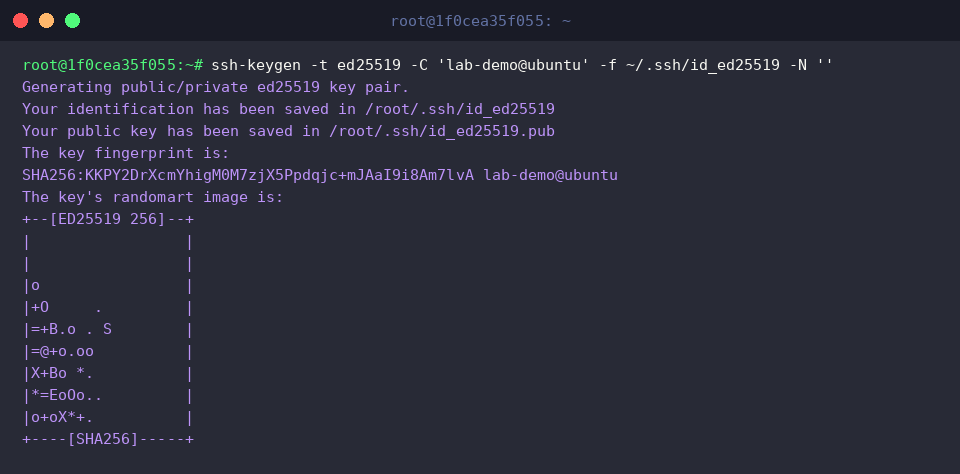
The ssh-keygen -t ed25519 -C 'lab-demo@ubuntu' -f ~/.ssh/id_ed25519 -N '' command generates a new SSH key pair without passphrase protection using the Ed25519 algorithm, a modern encryption standard.
The command output verifies that the private key (id_ed25519), public key (id_ed25519.pub), and unique key fingerprint have been successfully created.
To satisfy the strict security requirements of the SSH daemon, configure file permissions using chmod 600 ~/.ssh/id_ed25519 && chmod 644 ~/.ssh/id_ed25519.pub so that only the owner can read and write the private key, while the public key remains world-readable.

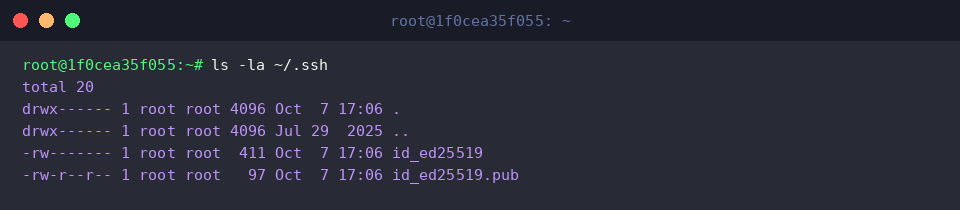
The ls -la ~/.ssh command displays a detailed list of files created in the directory along with their applied security permission states.
The output confirms that the intended permissions have been correctly applied: drwx------ (700) for the .ssh directory, -rw------- (600) for the private key, and -rw-r--r-- (644) for the public key.
3. Registering the Public Key for Passwordless Login (ssh-copy-id)
Create the file that will store authorized public keys for remote access and restrict access permissions so that only the owner can read and write to it using touch ~/.ssh/authorized_keys && chmod 600 ~/.ssh/authorized_keys.

Execute the cat ~/.ssh/id_ed25519.pub >> ~/.ssh/authorized_keys command to append the generated public key content to the authorized keys list.

The ssh-keygen -l -f ~/.ssh/authorized_keys command inspects the fingerprint information of the registered authentication key file to verify that the public key has been properly added.
The output verifies that the 256-bit Ed25519 public key and the comment specified during generation (lab-demo@ubuntu) are correctly registered.

4. Simplifying Complex Connection Commands with an SSH Config File
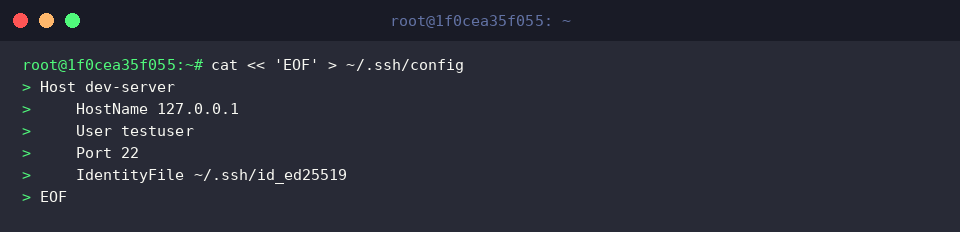
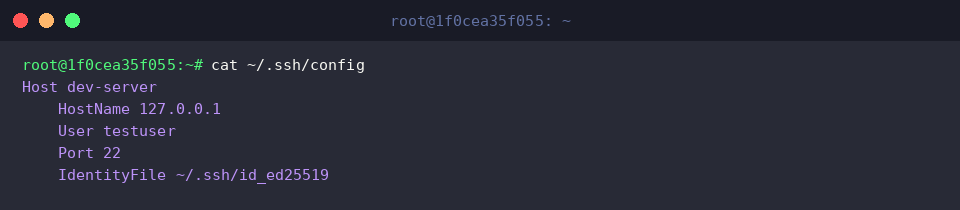
Define the remote host’s IP address, username, port number, and authentication key path in the ~/.ssh/config file so you can connect conveniently using an alias instead of lengthy connection parameters.
To prevent the SSH client from rejecting configuration files that are insecure, set the file permissions using chmod 600 ~/.ssh/config so that only the owner can read and write to it.

The cat ~/.ssh/config command prints the contents of the written SSH client configuration file to check its configuration state.
The output confirms that the hostname, user account, port, and authentication private key information for the dev-server alias have been saved exactly as intended.
5. Executing One-Off Commands and Tunneling with SSH to Boost Remote Productivity
The ssh -V command checks the version information of the OpenSSH client currently installed on the system.

The ssh -o BatchMode=yes -o ConnectTimeout=2 [email protected] 'uname -a; df -h' || true command directly executes commands to check system information and inspect disk usage on the remote host without opening an interactive shell, returning the results immediately.
Configuring it to run non-interactively without waiting for password prompts allows one-off commands to be executed safely within automation scripts or batch jobs.

The ssh -f -N -L 8080:localhost:80 -o ConnectTimeout=2 [email protected] || true command performs local port forwarding by creating a secure encrypted tunnel in the background without executing remote commands, mapping port 8080 on the local system to port 80 on the remote server.
This allows you to securely access remote internal web services or databases that are not directly exposed to the outside through a local port.

So far, we have walked step-by-step through basic remote connections with SSH on Ubuntu, setting up key-based passwordless login for enhanced security, and leveraging useful port forwarding techniques.
With the SSH skills learned through these hands-on practices, you can now build a safer and more convenient remote server management environment.