


Overview
Bypass the dense documentation and jump straight into practical Linux service administration. This tutorial provides an actionable, end-to-end walkthrough using a real-world web daemon. You will gain hands-on proficiency in provisioning background daemons, manipulating runtime lifecycle states, inspecting internal health diagnostics, and configuring boot persistence.
Setting Up the Test Environment and Inspecting Unit Status (status)
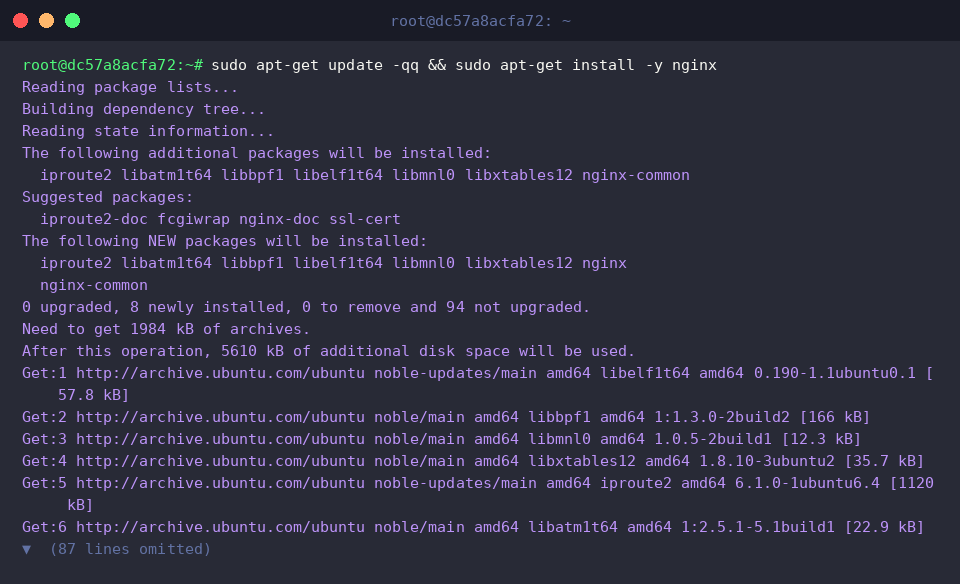
To establish our operational playground, deploy the nginx web server package across the test system.
Executing systemctl status exposes real-time runtime indicators, execution trees, and boot registration flags for the target unit.
The diagnostic payload reveals that while Nginx is configured to initialize during early boot sequences (enabled), its runtime daemon remains dormant (inactive).
⚙️ [Essential Command-Line Switches]
-l (--full) : Prevents text truncation, wrapping long log lines and unit properties cleanly to match the display area.--no-pager : Pipes raw output directly into standard output, bypassing interactive pagers like less or more.-t (--type) : Constrains query sweeps to specific unit abstractions, such as service, socket, or mount.-a (--all) : Forces systemd to catalog every managed unit in memory, encompassing inactive and uninstantiated objects.--failed : Filters specifically for broken, degraded, or prematurely terminated services.

Controlling Daemon Execution: Starting, Stopping, and Restarting (start, stop, restart)
To shut down an active instance of Nginx immediately, trigger sudo systemctl stop nginx.
Modifying process lifecycles requires administrative privileges (sudo); upon graceful shutdown, systemd silently hands control back to the terminal prompt.

For non-interactive scripts or quick sanity checks, systemctl is-active nginx returns a bare operational status string.
Because the process tree was just halted, the query standard output cleanly reads inactive.

Spinning up the stopped daemon requires invoking sudo systemctl start nginx.
Elevated superuser privileges allow the initialization sequence to proceed, finishing quietly without verbose output when successful.

Issuing sudo systemctl restart nginx forcefully terminates the active master process and spins up a brand-new process thread immediately.
System administrators routinely apply this sequence to flush runtime states or reload freshly edited daemon configurations.

Validate the service’s runtime integrity by querying its state once more with systemctl is-active nginx.
With the daemon listening happily on configured ports, the subsystem confirms its lively state by returning active.

Managing Boot-Time Persistence (enable, disable)
Issuing sudo systemctl enable nginx instructs systemd to attach the service automatically into future OS boot sequences.
Under the hood, this action crafts a target symlink within the /etc/systemd/system/ filesystem tree, hooking the unit into default runtime dependencies.

Verify whether the service will trigger automatically at system boot by executing systemctl is-enabled nginx.
The output returns enabled, confirming the existence of the relevant operational hooks.

To prevent the daemon from launching automatically during machine bootups, run sudo systemctl disable nginx.
This operation sweeps away the symlink associations generated earlier, detaching the unit from startup target milestones.

Re-evaluating the target with systemctl is-enabled nginx provides explicit feedback on the registration state.
The resulting disabled output proves that the automated boot trigger has been stripped away.

Restore auto-start behavior by re-executing sudo systemctl enable nginx.
The configuration engine reconstructs the removed target links, guaranteeing reliable daemon startup across successive system reboots.

Querying Active Unit Pools and Hunting Down Failures (list-units, failed)
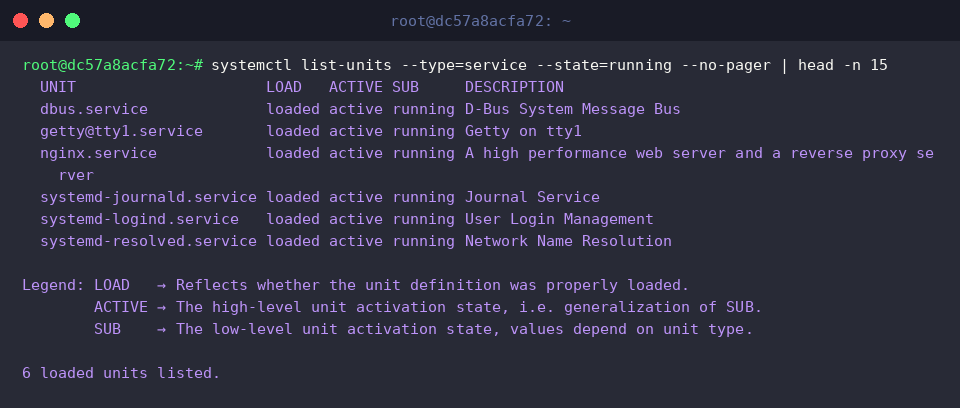
Running systemctl list-units --type=service --state=running --no-pager | head -n 15 filters and lists only actively operating service units, truncating output to the first 15 entries.
The resulting snapshot confirms that key operating system dependencies, along with our newly provisioned nginx.service, are running smoothly in user space.
To isolate degraded nodes or crashed processes, run systemctl --failed --no-pager.
Seeing 0 loaded units listed indicates zero faulted units in the process table, signaling a rock-solid, healthy OS environment.

You now have a solid command of systemctl fundamentals, covering everything from core runtime manipulation to automated boot-time wiring.
Hands-on execution is the fastest way to build muscle memory, so keep practicing these workflows to take full control of modern Linux systemd environments.