


Overview
At the heart of software management on Debian and Ubuntu systems lies dpkg, the foundational low-level engine responsible for handling .deb archives. While high-level frontends like apt manage remote repositories and dependency trees automatically, mastering dpkg provides administrators with granular control over individual package files. This hands-on tutorial walks through the complete package lifecycle: staging local packages, inspecting archives prior to installation, querying the local database, tracing binary ownership, performing clean uninstalls, and repairing broken dependency states.
1. Staging the Environment and Auditing Existing Packages
To keep our experimentation isolated from system workspaces, we begin by spinning up a clean temporary working directory via mkdir -p /tmp/dpkg-demo && cd /tmp/dpkg-demo.

Next, we pull down a standalone Debian package binary without immediately committing it to the operating system. We fetch the lightweight sl package using apt-get update -qq && apt-get download -y sl.

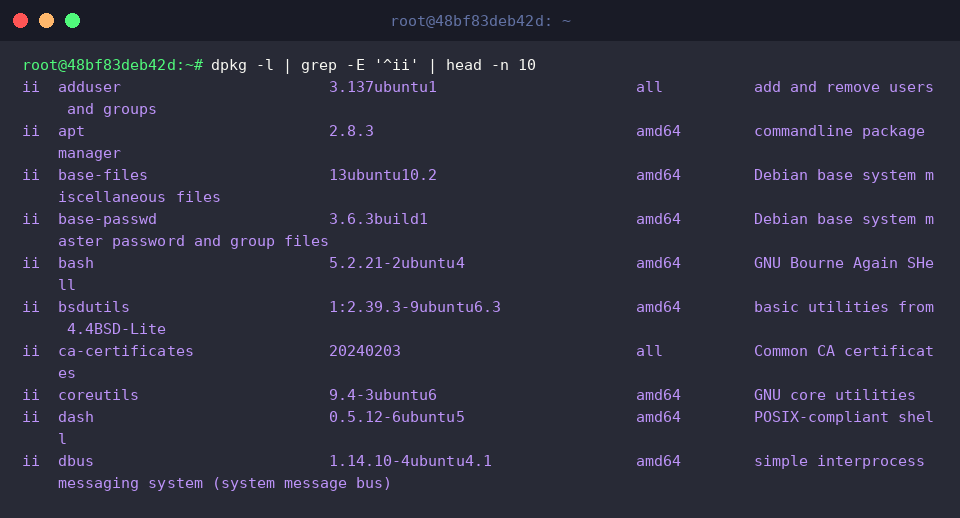
To survey what is currently active on the host, the dpkg -l command renders a tabular list of registered software packages alongside their current operational flags.
A leading status string of ii confirms that the package is cleanly installed and configured. Combining this command with filtering tools like grep and head allows quick inspection of targeted packages.
⚙️ [Essential Command Switches]
-i (--install) : Installs a target .deb archive onto the host filesystem.-r (--remove) : Strips application binaries while leaving runtime configurations and cache intact.-P (--purge) : Completely expels a package, scrubbing all associated configuration scripts and data.-l (--list) : Displays an inventory of known packages along with their installation states.-s (--status) : Dumps comprehensive control metadata, version details, and dependencies for an installed package.-L (--listfiles) : Enumerates every file deployed across the system by an installed package.-c (--contents) : Inspects the internal filesystem payload of an uninstalled .deb archive.-I (--info) : Extracts internal package control fields and metadata from an uninstalled .deb archive.--unpack : Extracts archive contents into target paths without running post-installation configuration routines.--configure : Finalizes setup and triggers configuration scripts for unpacked, pending packages.
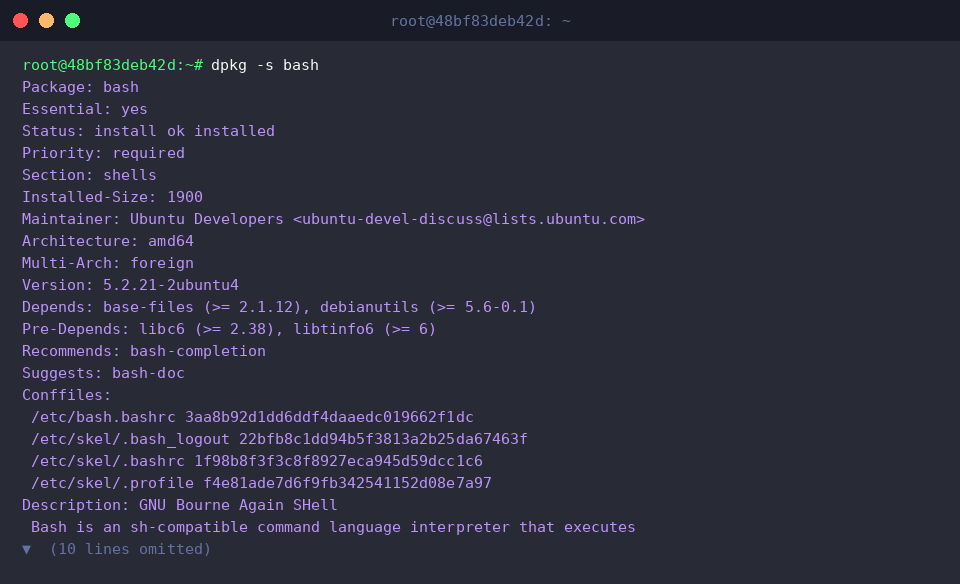
When deeper diagnostics are needed for software already on the machine, dpkg -s retrieves the complete internal database record—including version strings, architectures, and explicit dependency constraints (Depends).
A verification field displaying Status: install ok installed guarantees that the component is fully registered and operational.
2. Inspecting Archives Pre-Flight and Deploying with dpkg -i
Switch into the demonstration directory containing our downloaded .deb artifact using cd /tmp/dpkg-demo.

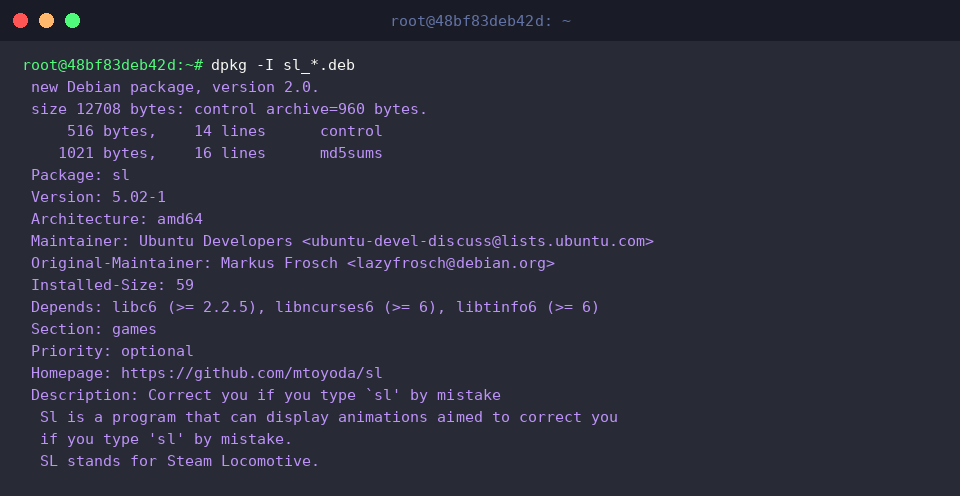
Before introducing unverified packages to your operating environment, running dpkg -I lets you audit their internal manifests and control metadata.
Reviewing fields such as Package, Version, and Depends reveals prerequisites and architectural requirements ahead of deployment, preventing surprises during setup.
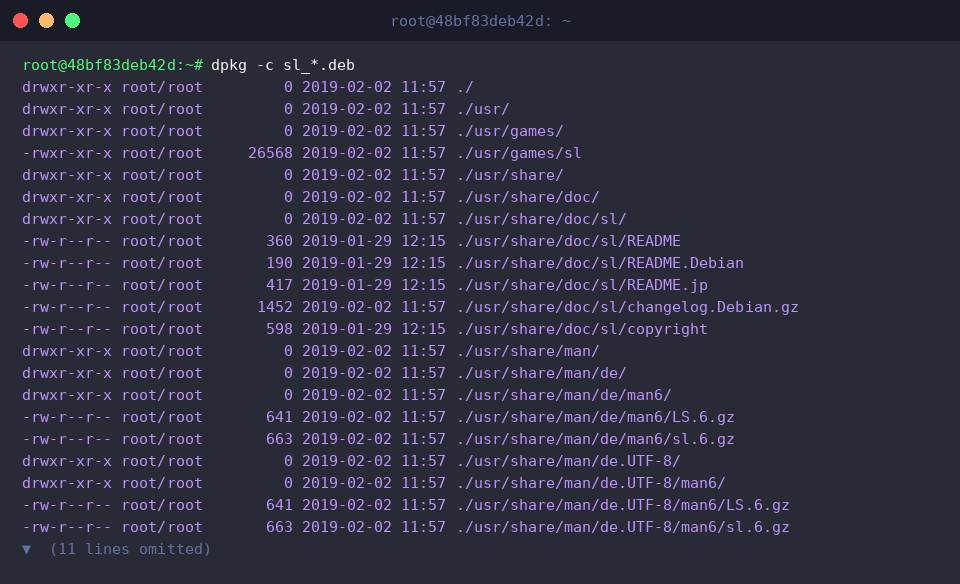
To examine the exact directory tree a package will populate upon installation, pass the archive to dpkg -c.
This preview lists all prospective file destinations—such as executables under /usr/games/sl and associated man pages—allowing administrators to verify installation targets in advance.
With the package verified, trigger the installation routine directly with dpkg -i.
The engine unpacks the payload, places binaries into their respective system hierarchies, runs post-install hooks, and marks the software as configured.

Validate the newly installed binary by launching /usr/games/sl -a || true directly from your shell.

3. Package Forensics: File Audits and Reverse Ownership Lookups
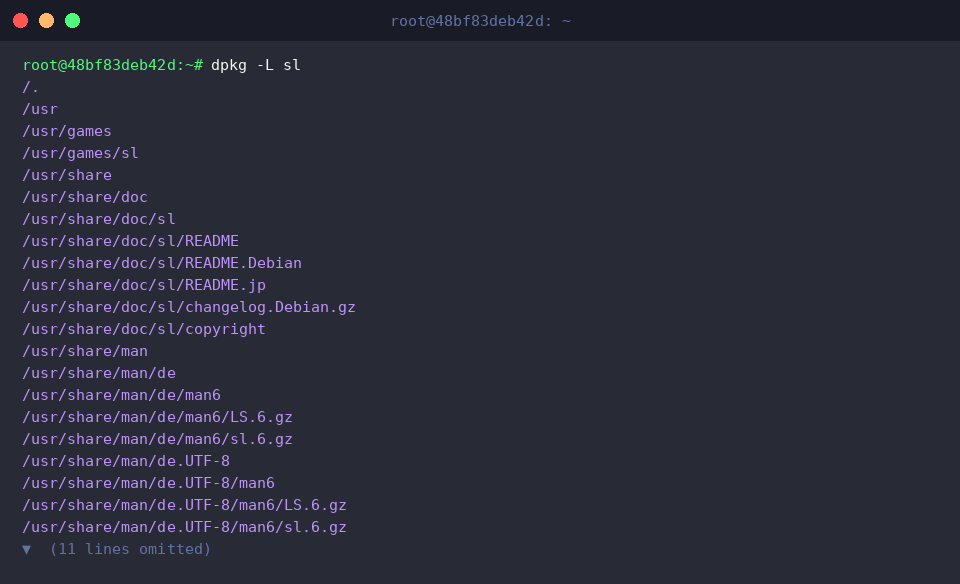
To audit the system footprint of an active package, invoke dpkg -L. This command enumerates every file and directory deployed by the specified software.
Reviewing this manifest lets you locate installed binaries like /usr/games/sl, documentation assets, and licensing notices distributed throughout the OS.
Conversely, when troubleshooting mystery utilities or anomalous binaries on disk, dpkg -S performs a reverse database lookup to identify which package owns a specific path.
The resulting output—formatted as sl: /usr/games/sl—confirms that the executable originates from the sl package.

Keep in mind that dpkg -S searches for verbatim paths recorded in the package database. If you feed it an alias or symlinked path, the query may return empty.
Because modern Debian and Ubuntu distributions implement UsrMerge (symlinking legacy paths like /bin to /usr/bin), queries must target canonical locations like /usr/bin/ls to accurately pinpoint the parent package (coreutils).

4. Removal Strategies (Remove vs. Purge) and Dependency Recovery
To decommission software while preserving customized configuration files, execute dpkg -r.
The output logs Removing sl, signaling that application binaries have been successfully decommissioned without touching configuration state.

If your goal is a zero-trace deletion that scrubs configuration records, use dpkg -P.
Purging guarantees that lingering configuration remnants left behind by standard removals are discarded, returning the system to a clean baseline.

Because dpkg operates strictly at the file level without automatic remote dependency resolution, manual installations can occasionally leave unmet dependencies. You can resolve these conflicts automatically using apt-get install -f -y.

Finally, clean up the exercise artifacts and release allocated disk space by executing rm -rf /tmp/dpkg-demo.

Understanding the low-level mechanics of dpkg provides Linux administrators with a powerful diagnostic toolkit when debugging packages, verifying file ownership, or managing offline environments. Choosing the appropriate switches for installation, queries, and removal ensures your Debian and Ubuntu systems remain stable and maintainable.