


Overview
Gaining clear visibility into active system tasks represents the bedrock of day-to-day Linux administration and performance troubleshooting. This handbook breaks down the architecture and command-line mechanics of ps—the cornerstone utility for auditing running processes. Beyond untangling the historic divergence between ps aux and ps -ef, we will examine actionable filtering workflows, resource-ranking pipelines, and practical terminal diagnostics.
1. Inspecting Shell Tasks and Fundamentals of the ps Utility
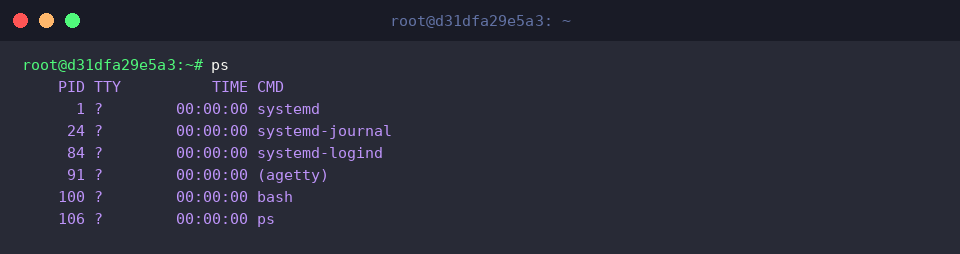
The ps utility captures an instantaneous snapshot of current operating system tasks. Executing it in isolation queries only the processes bound directly to your active shell session. The default table reports four primary data points: the unique process ID (PID), the attached controlling terminal device (TTY), accumulated CPU runtime (TIME), and the executable binary name (CMD).
⚙️ [Key Options Reference]
-e, -A : Enumerate every process currently active across the entire operating system.-f : Present an exhaustive, full-format listing incorporating UID, PID, PPID, and initialization parameters.-u : Restrict queries to a designated user or render resource-oriented operational statistics.-ef : The ubiquitous POSIX standard combination designed to inspect full system workloads at a glance.aux : The BSD-derived parameter set highlighting comprehensive CPU and memory footprints across all accounts.-p : Target and report metadata strictly for a specified Process ID (PID).
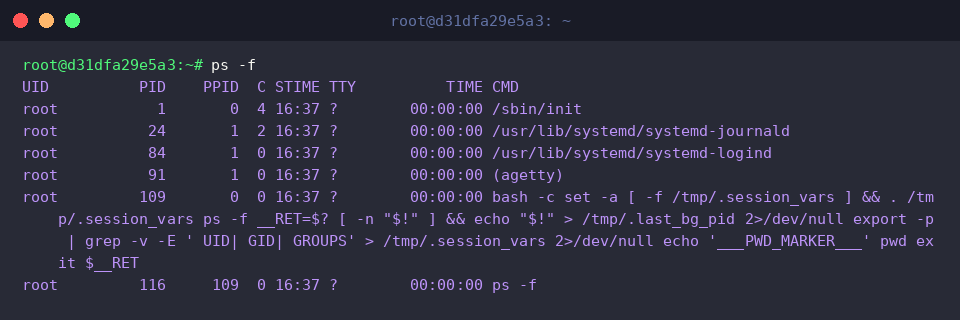
Invoking ps -f switches the output into full-format mode, exposing richer runtime context. Alongside standard identifiers, the report includes the launching account name (UID), the originating parent ID (PPID), the initial launch timestamp (STIME), and the complete binary execution path alongside its supplied arguments. Evaluating PPID is particularly crucial when debugging process inheritance and tracking down rogue parent services.
2. The BSD Paradigm: Comprehensive System Auditing with ps aux
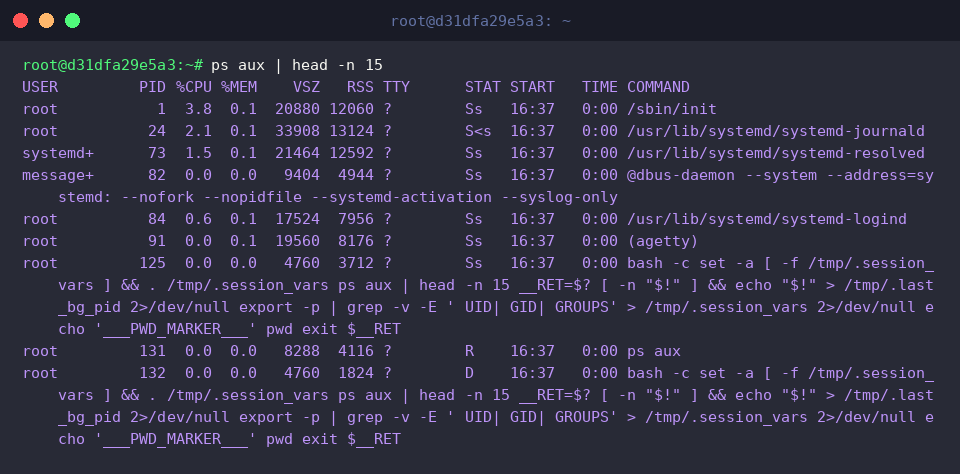
Adopting BSD syntax (which omits preceding dashes), ps aux pulls an exhaustive system-wide telemetry table covering every daemon, system account, and interactive user session. To maintain readability across terminal buffers, pipe the output through head -n 15 to capture the top slice of the table.
In this layout, USER denotes process ownership, while %CPU and %MEM quantify dynamic compute and RAM saturation. Memory footprint is bifurcated into VSZ (total virtual memory mapped in kilobytes) and RSS (resident set size, representing actual physical RAM occupied). The STAT column exposes real-time scheduler state flags—such as R for actively executing, S for interruptible sleep, and s indicating a session leader. Finally, START notes the launch hour, TIME records cumulative compute cycles, and COMMAND displays the full launch invocation.
3. The Standard POSIX Approach: Tracing Process Lineage with ps -ef
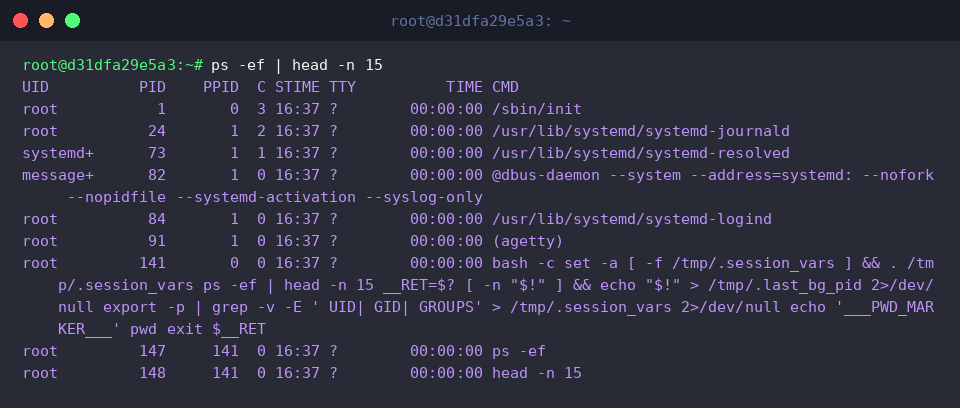
System administrators leaning on POSIX and UNIX standards universally rely on ps -ef to generate full system audits. Truncating the stream with head -n 15 keeps the initial screen output organized and easy to scan.
The POSIX header displays the owning username (UID), primary task identifier (PID), and the parent’s identifier (PPID). Processor allocation weighting appears under C, alongside initialization time (STIME), target console device (TTY), consumed CPU execution duration (TIME), and the exact executed command string (CMD). Directly contrasting the PID against the PPID column provides instant clarity on process ancestry.
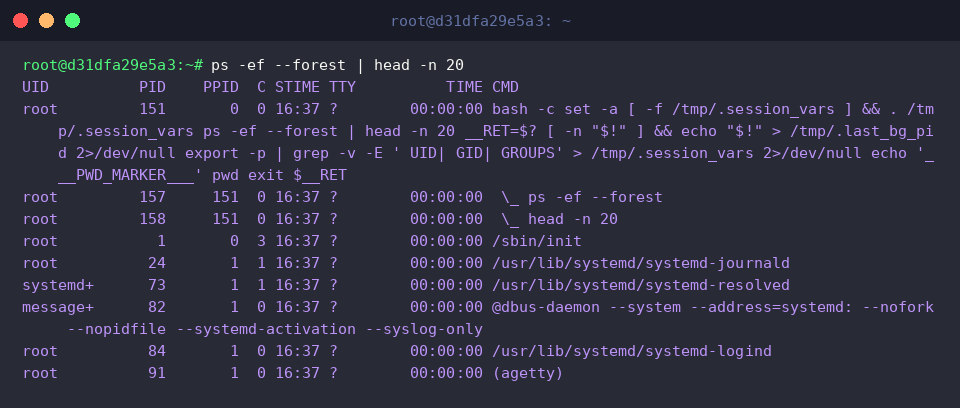
Appending the tree flag via ps -ef --forest transforms the flat stream into a visual hierarchy illustrating parent-child dependencies. Truncating with head -n 20 highlights the upper branches of this organizational layout.
The visual indentation and \_ branch markers under CMD clarify how sub-processes spawn from primary system engines. This topological view proves invaluable when tracking down complex service pipelines, orphaned tasks, or multi-threaded daemon architectures.
4. Production Pipelines: Targeted Filtering and Resource Profiling
To set up a predictable test target for filtering and sorting, spin up a background dummy process scheduled to run for five minutes using sleep 300 &.

A common pitfall with standard search pipelines is capturing the search utility itself. Running ps aux | grep [s]leep leverages character class syntax to match the string while keeping the active grep instance out of the returned table. As shown below, this cleanly isolates the target sleep 300 job, exposing its PID (173), current sleeping status (S), and execution timestamp without background noise.

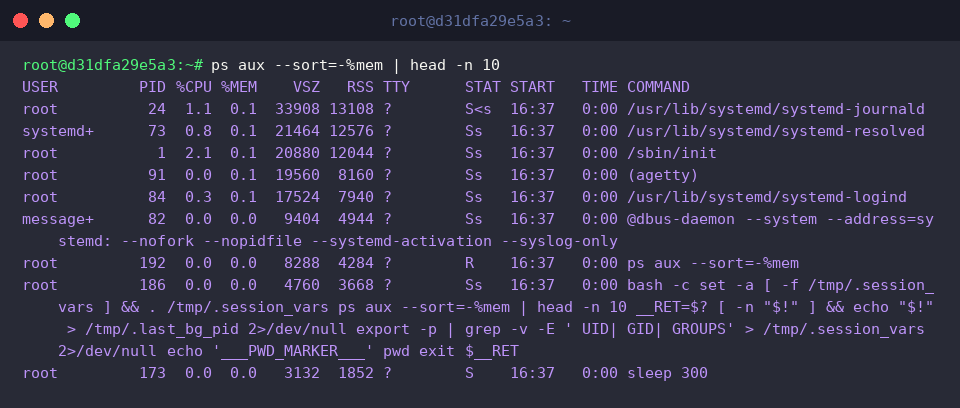
When memory pressure spikes, identify the heaviest consumers by sorting with ps aux --sort=-%mem. Chaining this query with head -n 10 instantly extracts the top memory-intensive processes dominating system RAM.
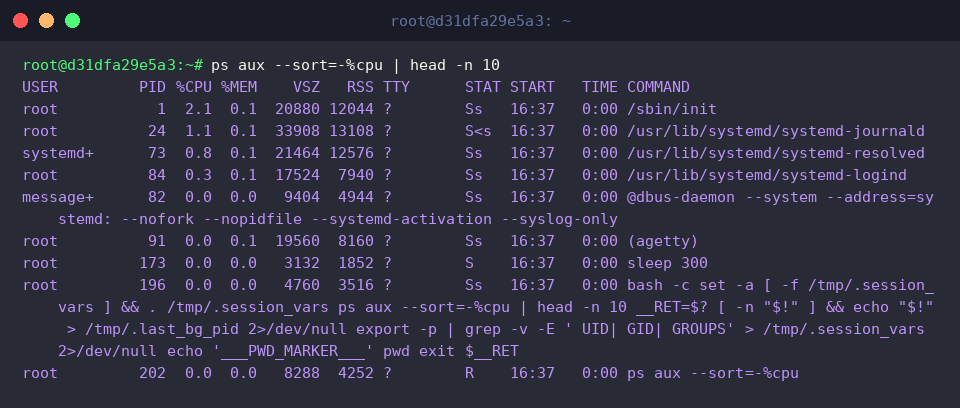
Similarly, pinpoint CPU bottlenecks using ps aux --sort=-%cpu. Combining this sort key with head -n 10 surfaces the primary workloads driving compute load, speeding up root-cause analysis during unexpected resource saturation.
Once verification is complete, clean up the testing environment by terminating the active background job with pkill sleep.

Mastering these essential ps syntaxes, sorting options, and terminal pipelines equips you with the fundamental toolkit needed to rapidly diagnose, monitor, and maintain stability across your Linux server infrastructure.