


Executive Overview
Modern Linux distributions have long deprecated the legacy net-tools suite in favor of the much more capable iproute2 package. Central to this modernized stack is the ip utility—a unified, high-performance tool designed to inspect, manipulate, and monitor network interfaces, routing tables, and neighbor discovery. This hands-on walkthrough breaks down practical usage patterns, showing you how to dissect network telemetry, verify IP assignments, trace routing paths, and diagnose interface-level bottlenecks on Ubuntu systems.
Getting Started: Package Verification and Syntax Overview
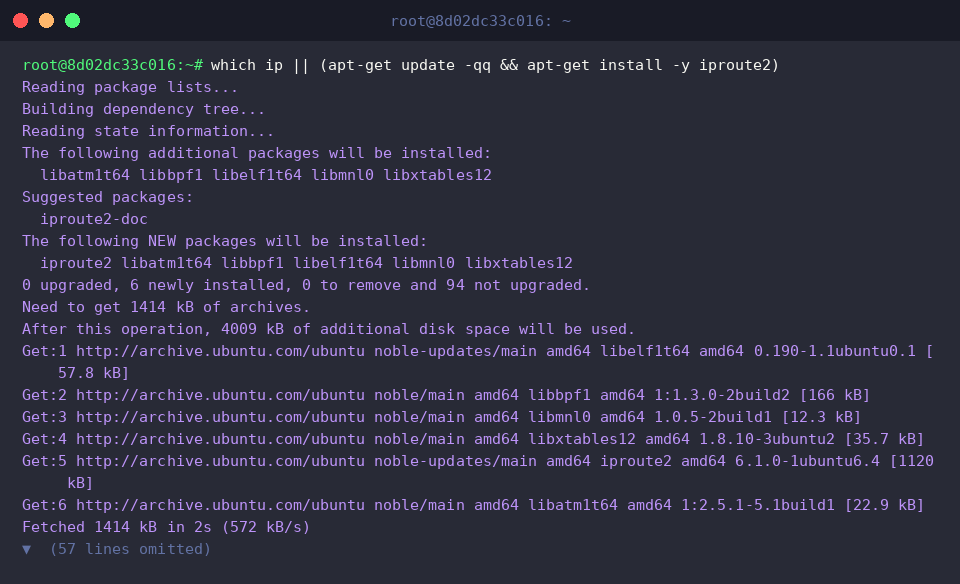
Before jumping into interface diagnostics, confirm that your Ubuntu environment has the necessary binaries installed. Running which ip || (apt-get update -qq && apt-get install -y iproute2) verifies the presence of ip and silently pulls down iproute2 if missing.
To audit the installed release of the utility, execute ip -V.
⚙️ [Essential CLI Flags]
-V (-Version) : Prints the build version of the iproute2 utility.-c (-color) : Colorizes terminal output to distinguish interfaces, flags, and IP classes at a glance.-br (-brief) : Compresses interface states and assigned IPs into a clean, single-row summary.-s (-stats, -statistics) : Exposes low-level interface metrics, including transferred bytes and packet errors.-4 : Restricts output exclusively to IPv4 stack information.-6 : Filters results to present only IPv6 addressing and protocol states.

If you need a comprehensive syntax reference or wish to review supported sub-objects (like link, addr, or route), invoke ip help.

Inspecting Network Interfaces and IP Addresses (ip addr)
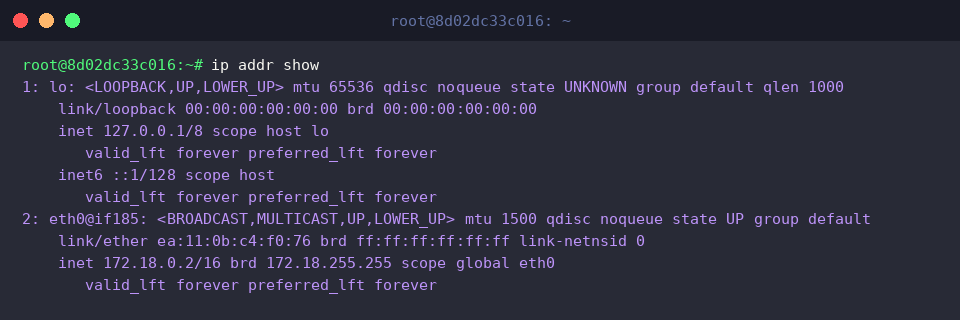
To review every interface defined on the host alongside its assigned address pool, use ip addr show.
This verbose overview exposes both the loopback interface (lo) and physical adapters like eth0. You can verify their operational status (UP), hardware identifiers (link/ether), assigned CIDR blocks across both stacks (inet for IPv4 and inet6 for IPv6), as well as the corresponding broadcast parameters (brd).
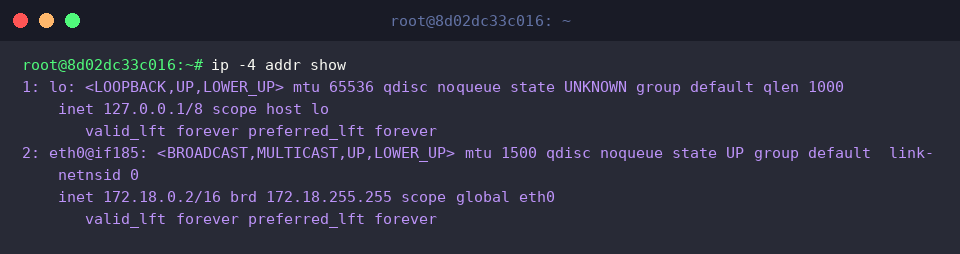
When troubleshooting pure IPv4 setups, filter out extraneous IPv6 lines using ip -4 addr show.
Stripping out the extra protocol data makes it straightforward to focus directly on essential IPv4 endpoints (127.0.0.1/8, 172.18.0.2/16) and target subnets.
For a streamlined, script-friendly overview, run ip -br addr show.
Leveraging the -br (-brief) switch suppresses protocol noise, delivering a condensed table that maps interface names directly to their operational flags (UP, UNKNOWN) and current network addresses.

Auditing Link Layer States and Hardware MACs (ip link)
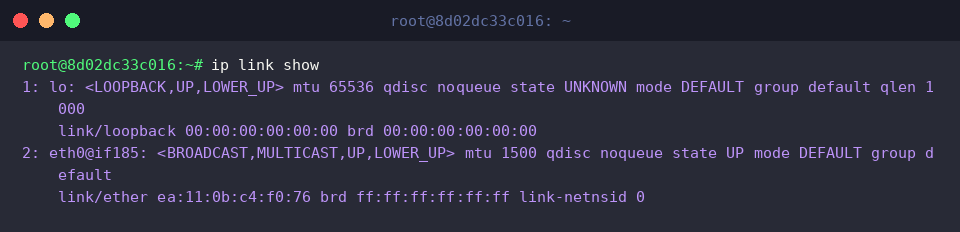
When you need to examine the data link layer without addressing details, ip link show exposes the low-level physical state of all adapters.
This output allows engineers to verify link availability (UP), the configured maximum transmission unit (mtu 1500), and the underlying MAC address (link/ether ea:11:0b:c4:f0:76).
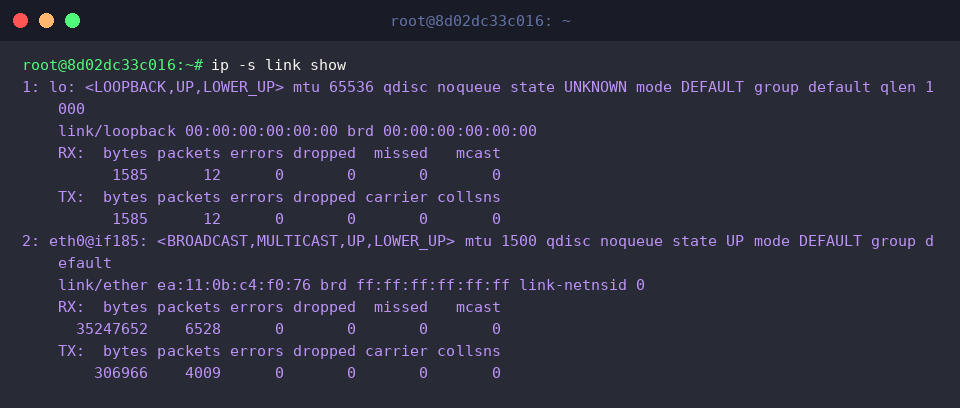
To diagnose transmission drops or link degradation, invoke ip -s link show.
Adding the -s flag reveals cumulative throughput counters across both receive (RX) and transmit (TX) rings. Key indicators like CRC errors, dropped buffers, and carrier mismatches are exposed here to aid physical-layer triage.
Inspecting Gateway Paths and Routing Rules (ip route)
The kernel routing table dictates how outbound packets traverse the network. Running ip route show exposes active routing directives and the default egress point.
Here, you can pinpoint your upstream default gateway (default via 172.18.0.1 dev eth0) alongside local subnet routes (172.18.0.0/16) mapped to specific devices.

Rather than parsing routing entries manually, let the Linux kernel compute the exact egress path for a target host by executing ip route get 8.8.8.8.
This query pinpoints the next-hop gateway (via 172.18.0.1), the selected transmission adapter (dev eth0), and the local source IP binding (src 172.18.0.2) chosen for socket communication.

Neighbor Discovery and ARP Table Management (ip neigh)
To populate the local neighbor cache with fresh link data, initiate a single ICMP probe to your upstream router with ping -c 1 -W 1 $(ip route | awk '/default/ {print $3}') > /dev/null 2>&1 || true.

Now, inspect the neighbor table (formerly known as the ARP cache) using ip neigh show.
This command lists adjacent hosts, pairing the gateway’s IP (172.18.0.1) with its parent interface (eth0), physical hardware address (lladdr f2:4a:a1:85:2d:89), and communication liveness state (REACHABLE), confirming bi-directional reachability on the local segment.

By mastering these modular commands within the modern ip framework, you can replace outdated habits and diagnose Linux network behavior with far greater precision. Integrating these workflows into your day-to-day administration will make debugging interfaces, gateways, and traffic flows faster and more reliable across any modern Ubuntu environment.