


Overview
Maintaining production stability on Debian-based platforms frequently demands pinning critical software versions to avoid breaking changes during routine system upgrades. Similarly, keeping server environments tidy requires fine-grained control over which components count as direct requirements versus transient dependencies. This guide explores the capabilities of apt-mark—a built-in maintenance utility that lets system administrators lock specific package builds in place, inspect installation metadata, and reclassify packages between automated and manual installation tiers to safeguard infrastructure reliability.
Pinning Package Versions to Prevent Accidental Upgrades
Before experimenting with version locks, prepare a test subject on your machine. Run sudo apt-get update -qq && sudo apt-get install -y curl to pull the latest repository metadata and ensure the target binary is present.
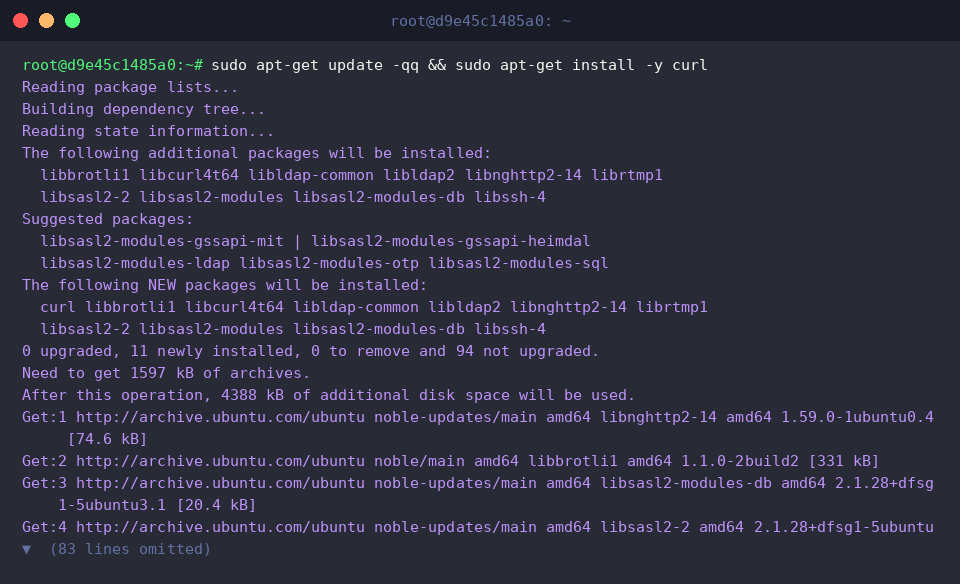
Executing sudo apt-mark hold curl tells the APT resolver to ignore future upstream releases for this software. Even when sweeping invocations like apt upgrade or apt dist-upgrade execute, the marked binary remains pinned at its current build.
⚙️ [Primary Subcommands]
hold : Freezes a package at its installed version, blocking automatic patching and upgrades.unhold : Lifts the upgrade block, allowing standard upgrade passes to process the package again.showhold : Prints all packages currently pinned against automated updates across the OS.auto : Reclassifies a package as an automatically installed dependency.manual : Flags a package as explicitly requested by an administrator.showauto : Dumps every package marked as an automatic runtime requirement.showmanual : Lists all applications and tools deployed through direct user intervention.

To audit which binaries are shielded from routine patching, trigger apt-mark showhold.
The console output confirms that curl now sits securely on the local upgrade exclusion list.

Restoring Standard Upgrade Cycles with unhold
When security patches, compliance mandates, or deliberate architectural migrations require updating a pinned package, release the lock by running sudo apt-mark unhold curl.
The utility emits Canceled hold on curl., confirming that normal repository updates can now target this binary once more.

Verify that the exclusion list is empty by running apt-mark showhold once more.
An empty response guarantees that no active constraints remain on curl, re-enabling routine package maintenance.

Altering Installation Metadata: Toggling auto vs. manual Tiers
To see how APT handles garbage collection and lifecycle flags, introduce jq into the environment using sudo apt-get install -y jq.
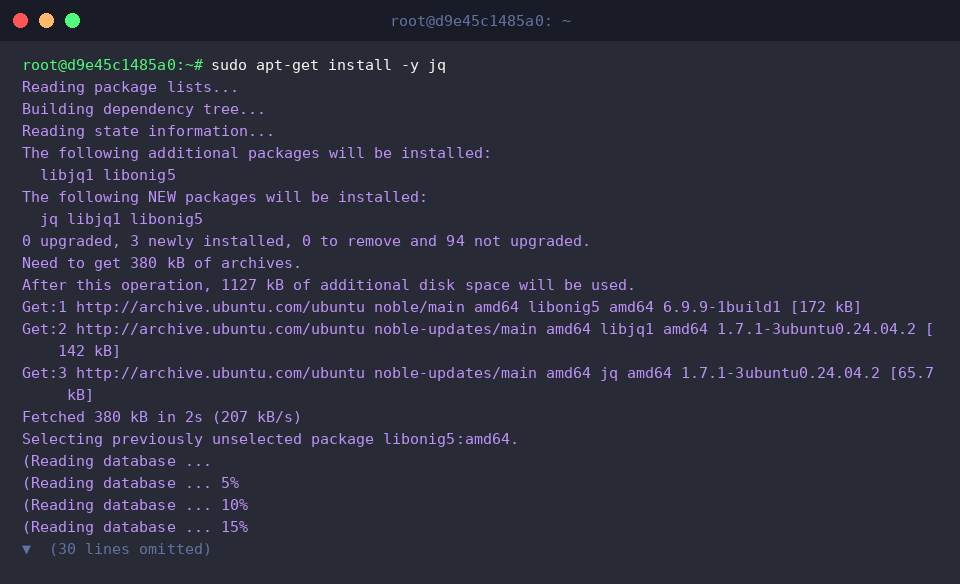
Run sudo apt-mark markauto jq to change the internal classification of jq from an operator-installed tool to an indirect dependency.
Marking software this way ensures that if parent components depend on it and are later purged, subsequent housekeeping via apt autoremove will cleanly prune the orphaned utility from storage.

Query APT’s internal tracking with apt-mark showauto jq to check the updated registration.
Because the utility returns jq, the operating system now treats it strictly as an automatically provisioned dependency.

If an application should permanently remain on the host regardless of upstream removals, invert this setting with sudo apt-mark unmarkauto jq.
Switching the attribute to manual installation protects the binary from being swept away during automatic dependency cleanups.

Inspect the manual package ledger using apt-mark showmanual jq.
The command returns jq, verifying that the binary has regained operator-protected status and will persist through routine autoremove cycles.

Auditing Host Packages: Full Inventory Diagnostics
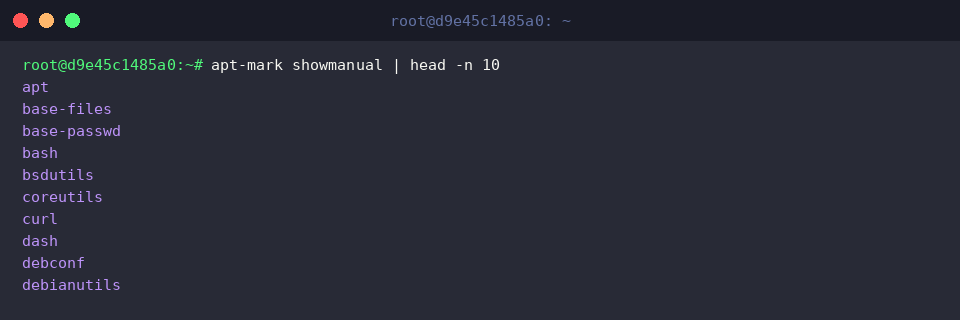
Inspect the top ten explicit software installations registered on your host by invoking apt-mark showmanual | head -n 10.
This readout surfaces foundational operating system packages alongside tools you installed directly, including curl.
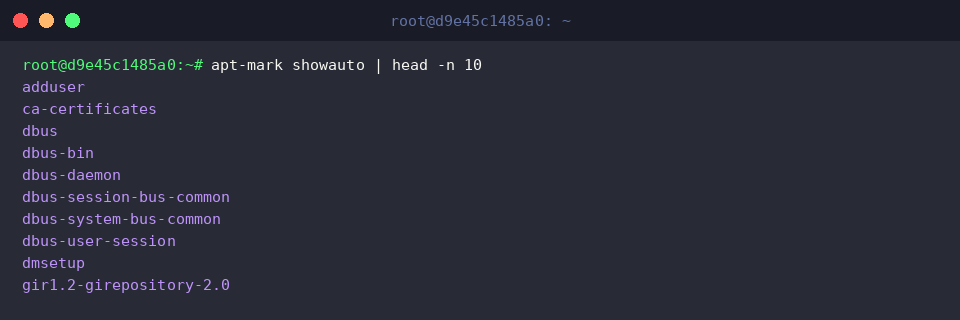
Conversely, inspect the underlying dependency layer with apt-mark showauto | head -n 10.
The resulting list displays supporting libraries, helper modules, and runtime prerequisites brought in to support primary workloads.
Mastering apt-mark provides Linux engineers with surgical control over software life cycles, preventing unintended downtime while keeping system dependencies streamlined and predictable. Incorporate these flags into your maintenance scripts to ensure reliable, drift-free server operations.