


Overview
The .bz2 format remains a staple across Linux systems when high compression ratios are prioritized over raw processing speed. In this walkthrough, we explore practical techniques for unpacking these archives with the standard bunzip2 utility. Beyond everyday unzipping tasks, you will learn how to preserve source archives, pipe uncompressed payloads directly to standard output, and incorporate flags that streamline everyday terminal administration.
Installing bunzip2 and Basic Extraction
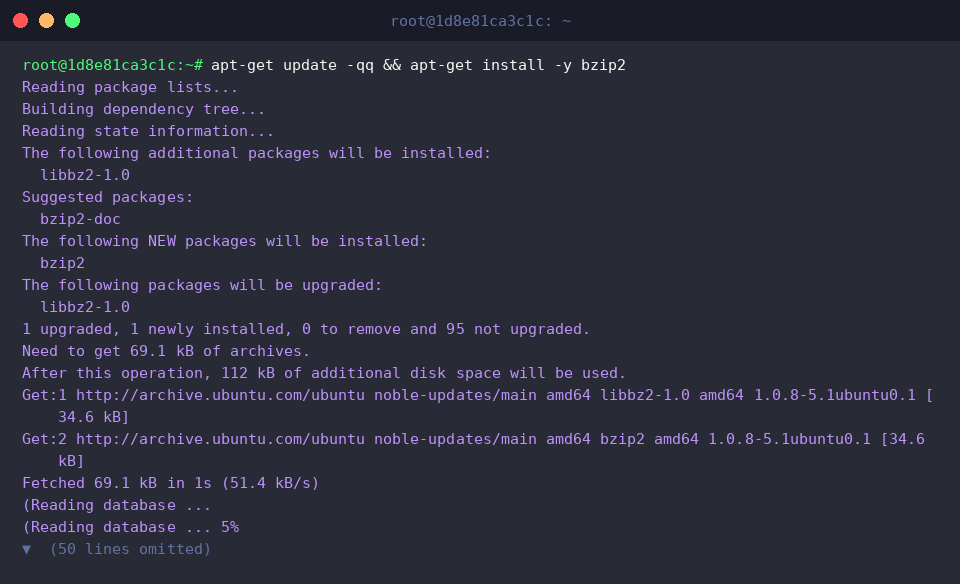
Before manipulating .bz2 files, ensure your system has the underlying utilities provisioned. Update your package lists and install the suite via apt-get update -qq && apt-get install -y bzip2.
To create a dummy file and compress it for testing, execute echo 'Hello Linux bunzip2 tutorial' > sample1.txt && bzip2 sample1.txt.

Running bunzip2 sample1.txt.bz2 triggers standard decompression on the target .bz2 file.
By default, the command replaces the compressed archive with the restored plaintext file, discarding the .bz2 package upon completion.
⚙️ [Essential Flags]
-k : Keeps (preserves) the input .bz2 file rather than deleting it post-extraction.-f : Forces file overwrite without prompting if a destination file already exists.-v : Enables verbose output, displaying percentage ratios and extraction details.-c : Outputs extracted contents directly to stdout, leaving the underlying filesystem untouched.-t : Performs an archive integrity check without writing any files to disk.

Confirm that the payload restored as expected by checking the file contents with cat sample1.txt.

Preserving the Original Archive During Decompression (-k Flag)
To experiment with retention flags, generate a fresh text payload and bundle it with echo 'Keep original archive test' > keep_test.txt && bzip2 keep_test.txt.

Invoking bunzip2 -k keep_test.txt.bz2 ensures the original compressed file remains intact alongside the uncompressed output.

Running ls -lh keep_test* verifies that both the newly extracted plaintext (keep_test.txt) and its source archive (keep_test.txt.bz2) coexist on disk.

Tracking Extraction Progress and Forcing Overwrites (-v, -f Flags)
To simulate an overwrite scenario with detailed progress reporting, prepare an archive while keeping the base file using echo 'Force overwrite test content' > force_test.txt && bzip2 -k force_test.txt.

Executing bunzip2 -vf force_test.txt.bz2 combines two key behaviors: the -f flag suppresses confirmation prompts and replaces any colliding file, while -v exposes detailed telemetry about the decompression stream directly on the console.

Inspecting Payloads Directly via Standard Output (-c Flag)
When you need to preview data quickly without writing an intermediate file to storage, start by setting up a fresh compressed target via echo 'Stream and preview test data' > stream_test.txt && bzip2 stream_test.txt.

The command bunzip2 -c stream_test.txt.bz2 pipes the uncompressed payload directly to stdout instead of generating a target file on disk.
This approach shines when piping text straight into search tools like grep, viewing payloads on the fly, or feeding downstream pipeline consumers.

A subsequent directory inspection using ls -lh stream_test.txt.bz2 shows that streaming through -c guarantees the compressed file stays perfectly intact and untouched.

You now have a solid command of bunzip2 for working with bzip2-compressed files on Ubuntu. Incorporate these flags into your terminal sessions and shell scripts to manage compressed data efficiently.