


Overview
When storage efficiency is a priority, bzip2 stands out in the Linux ecosystem for delivering exceptional compression ratios. This hands-on guide walks through essential flags and practical workflows for shrinking and restoring files, preventing accidental source file deletion, and balancing speed against compression density. Follow along with terminal demonstrations to master the interplay between bzip2, bunzip2, and bzcat.
Installing bzip2, Basic Archiving, and Keeping Source Files (-k, -v)
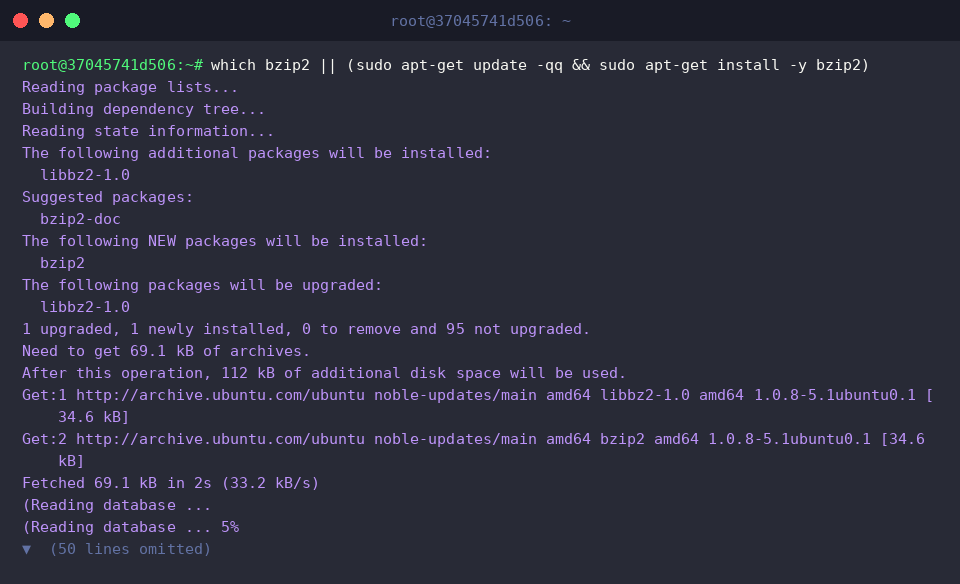
Before diving into operations, verify whether the utility is available on your Ubuntu workstation or server, fetching it via APT if missing.
To observe standard compression mechanics, generate a lightweight test file named sample1.txt using the echo command.

Under the hood, bzip2 relies on the Burrows-Wheeler block-sorting algorithm paired with Huffman coding, producing tighter archives than older tools like gzip.
By default, completing an archive replaces the target source file with a .bz2 container. Adding -v displays a real-time breakdown of compression percentages and processing metrics.
⚙️ [Key Options]
-d : Decompresses an existing .bz2 archive.-k : Retains the input file intact throughout compression or extraction.-v : Enables verbose output, showing progress, ratios, and savings.-f : Forces overwriting when destination files already exist.-t : Performs an archive integrity check without unpacking contents.-c : Directs output stream to stdout instead of modifying files directly.-1 to -9 : Configures the working block size from 100k to 900k (-9 serves as the default).

Because default behavior discards the uncompressed original, create sample2.txt to test non-destructive archiving.

Run bzip2 -vk sample2.txt to monitor compression metrics while explicitly instructing the tool to leave the source document untouched.
Pairing -k with -v ensures both the original sample2.txt and the freshly packed sample2.txt.bz2 remain side-by-side in your working directory.

A quick directory listing via ls -l sample* highlights the contrast: sample1.txt vanished after its default run, leaving only sample1.txt.bz2, whereas sample2.txt survived alongside its compressed counterpart.

Decompressing Archives and Verifying Data Integrity (-d, -t, bunzip2)
Before unpacking an unfamiliar archive, validate its internal structure using bzip2 -tv sample1.txt.bz2.
The -t switch reads through the compressed blocks to verify checksums without writing bytes to disk, while -v confirms an ok status across tested streams.

To restore the original text file with live status reporting, execute bzip2 -dv sample1.txt.bz2.
Since -k was omitted, the command discards sample1.txt.bz2 once decompression completes, leaving only the unpacked sample1.txt.

You can achieve identical extraction results using the standalone bunzip2 wrapper command. Running bunzip2 -vk sample2.txt.bz2 decompresses the content while preserving the .bz2 container.bunzip2 functions as an alias to bzip2 -d, making the syntax intuitive for system administrators who prefer dedicated extract commands.

Review the directory structure once more using ls -l sample* to confirm that the recovered plain text files and the retained .bz2 archives reside properly on disk.

Inspecting Compressed Files and Leveraging Standard Output (-c, bzcat)
Standard Unix pipeline workflows often require redirecting compressed output or reading contents on the fly. To demonstrate, set up sample3.txt.

Run bzip2 -c sample3.txt > sample3.txt.bz2 to stream compressed binary data straight to stdout, capturing it into a new archive via shell redirection.
Using -c leaves the source file entirely untouched by design, providing a clean alternative to the -k flag in automated shell scripts.

When you need to review archived logs or configuration snippets without writing extracted files to storage, invoke bzcat sample3.txt.bz2.
The bzcat utility mimics running bzip2 -dc, streaming uncompressed text straight into the terminal display or piping it smoothly into downstream tools like grep or less.

Executing ls -l sample3* confirms that writing through standard output redirection kept both sample3.txt and sample3.txt.bz2 perfectly intact.

Fine-Tuning Compression Levels (-1 to -9) and Evaluating File Sizes
To see how block allocation parameters influence processing throughput and archive density, generate a larger payload of numbers using seq 1 50000 > large_data.txt.

Prioritize throughput by applying the -1 flag via bzip2 -1 -vk -c large_data.txt > large_fast.bz2.
This lowest setting operates on compact 100k memory blocks, minimizing CPU and memory consumption to deliver the fastest turnaround time.

Conversely, trigger peak compression capability with bzip2 -9 -vk -c large_data.txt > large_best.bz2.
Level -9, which is also the application’s default behavior, allocates generous 900k blocks to maximize bit density at the expense of additional CPU cycles.

Inspect the resulting artifacts with human-readable units using ls -lh large*.
Starting from a 283K raw dataset, the -1 preset condensed the information down to 56K (large_fast.bz2), while the -9 run packed it into 67K (large_best.bz2), demonstrating how block sorting dynamics vary across distinct data patterns.

This walkthrough covered essential workflows for archiving, extracting, and streaming compressed files with bzip2 on Ubuntu.
Selecting the right combination of retention flags, output pipelines, and block presets will help you keep storage utilization lean across production environments.