


Overview
Decompressing massive bzip2 (.bz2) archives simply to review logs or check configuration settings introduces unnecessary I/O overhead and depletes valuable storage on production servers. The bzmore utility bypasses this hassle by streaming and paginating compressed text streams straight to your terminal without touching the disk with extracted data. This walk-through covers foundational mechanics, routine navigation workflows, and practical server log triage techniques using bzmore.
Verifying Packages and Preparing Test Archives
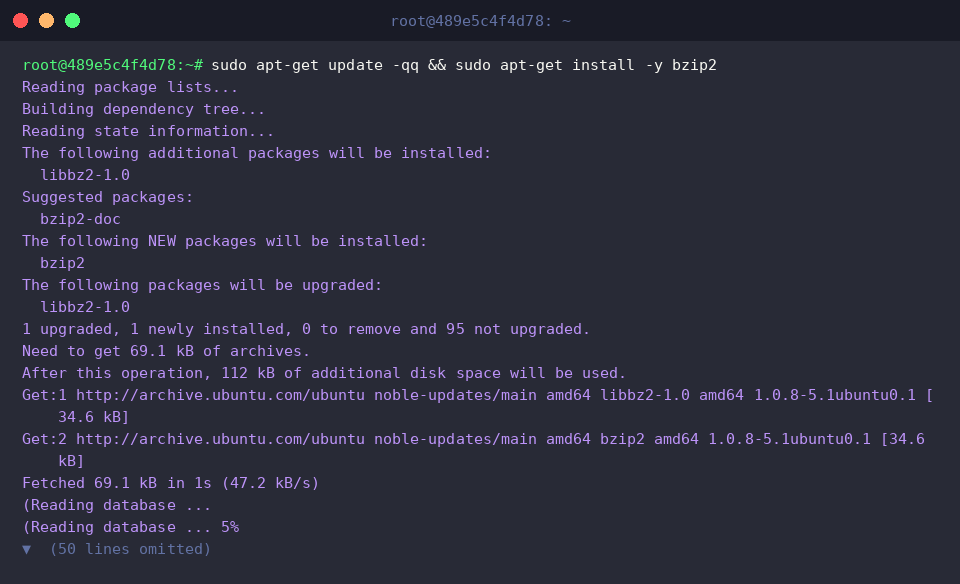
Before testing archive pagination, ensure your Ubuntu environment has the requisite bzip2 utilities installed by updating the package index and pulling the toolkit.
Next, generate a structured mock log file named service.log containing mixed severity events using the echo utility.

By default, the compression tool deletes uncompressed sources upon completion. Use the -k (keep) switch when running bzip2 -k service.log to preserve the original file alongside the new archive.

Verify that both the uncompressed source and its .bz2 counterpart exist on the filesystem by listing their attributes with ls -lh service.log*.

Basic bzmore Usage: Reading Compressed Streams On the Fly
Inspect the compressed target file’s metadata and disk footprint with ls -l service.log.bz2 before invoking the pager.

The primary purpose of bzmore is providing instantaneous terminal access to compressed plain text without intermediate write operations.
Executing bzmore service.log.bz2 dynamically extracts the data into standard output, prints a clear header with the filename, and renders the log entries directly in your console.

Handling Lengthy Logs with Interactive Terminal Paging
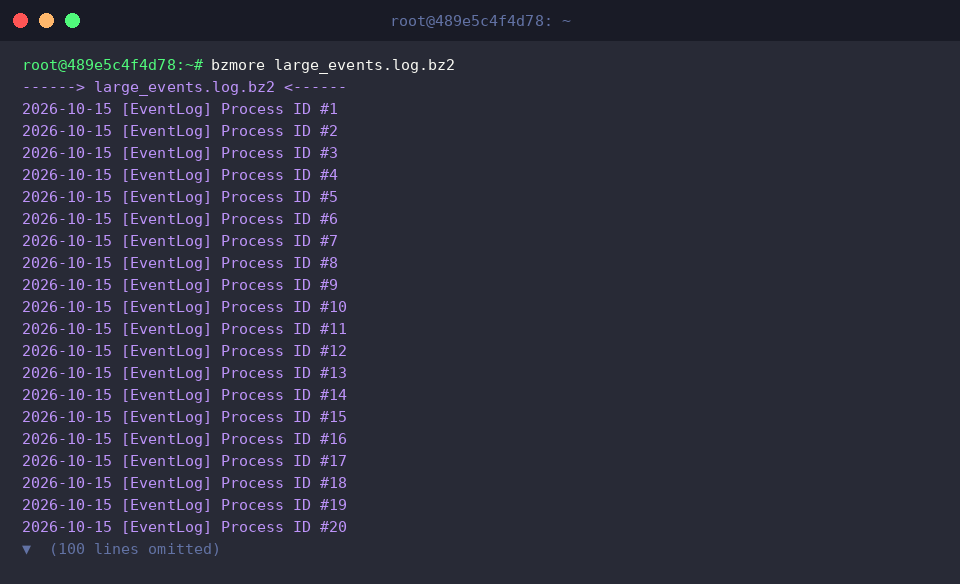
To observe terminal paging behavior across multiline data, synthesize a 120-line log and force-compress it using seq 1 120 | sed 's/^/2026-10-15 [EventLog] Process ID #/' > large_events.log && bzip2 -f large_events.log.

Running bzmore large_events.log.bz2 pauses terminal output as soon as it reaches the bottom of the visible screen buffer.
In this interactive state, advance an entire screen by hitting the Spacebar, step forward line-by-line with Enter, or instantly break out back to your shell prompt by pressing q.
Multi-File Inspection and Key Contrasts with bzless
To test sequential queue inspection across multiple archives, generate two distinct server health records and compress both using echo 'Node A: Status Healthy' > node_a.log && echo 'Node B: Status Degraded' > node_b.log && bzip2 -f node_a.log node_b.log.

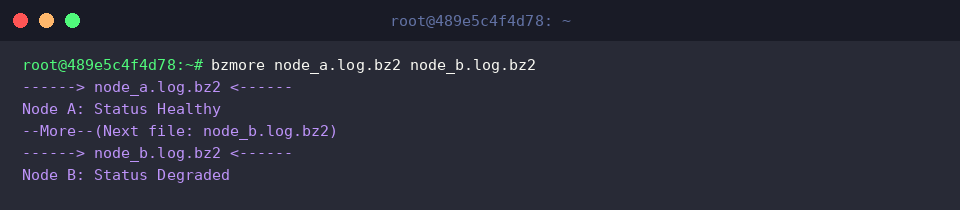
Passing several files simultaneously via bzmore node_a.log.bz2 node_b.log.bz2 opens a continuous inspection stream.
Reaching the end of the initial archive prompts --More--(Next file: node_b.log.bz2) at the footer; pressing Spacebar instantly switches context into the subsequent archive.
Keep in mind that bzmore inherits traditional more constraints and navigates strictly forward. If your troubleshooting requires backward scrolling, full-text pattern searches, or bidirectional navigation, prioritize bzless over bzmore.
Leveraging bzmore during day-to-day server administration eliminates decompression disk overhead and drastically accelerates incident triage when dealing with archived bzip2 logs.