


Overview
Transforming scalable vector assets into raster images or print-ready formats is a frequent requirement in headless environments and automated build pipelines. This walkthrough explores CairoSVG, a lightweight and efficient command-line utility built on Python Cairo. You will learn how to provision the tool on Ubuntu, execute single-command rasterizations to PNG and PDF, calibrate dimensions and print density, and implement a shell automation workflow for batch processing graphics.
1. Setting Up CairoSVG and Preparing a Test Vector File
Deploy CairoSVG onto your Ubuntu system via the official APT repositories by refreshing package indices and installing the Python module with sudo apt-get update -qq && sudo apt-get install -y python3-cairosvg.

CairoSVG leverages the Cairo graphics backend to convert SVG inputs into PNG, PDF, or PostScript outputs with minimal overhead. Verify that the CLI binary is available and inspect the installed build release by running cairosvg --version.
⚙️ [Essential CLI Flags]
-f, --format : Explicitly defines the target output format (png, pdf, ps, or svg).-o, --output : Sets the destination file path for rendered graphics.-w, --width : Forces the final raster width in pixels.-h, --height : Forces the final raster height in pixels.-s, --scale : Multiplies canvas dimensions by a floating-point scaling ratio.-d, --dpi : Controls rendering resolution in dots per inch for rasterization.-b, --background : Substitutes transparent viewports with a solid hex or named color value.

To establish an isolated test environment without external dependencies, assemble a simple vector graphic containing basic shapes and text using cat and a standard shell HereDoc to produce sample.svg.
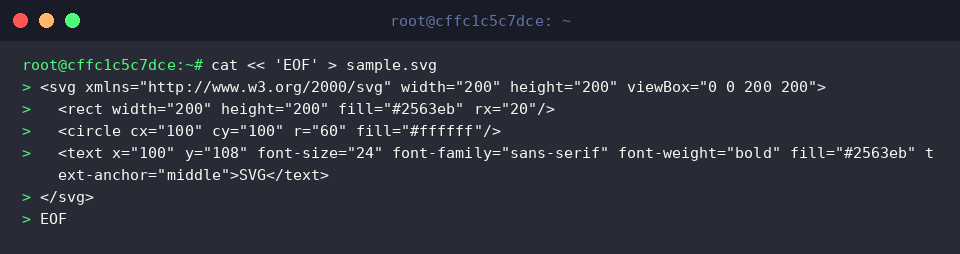
Confirm the creation and inspect the baseline metadata of your raw asset by executing ls -lh sample.svg.

2. Fundamental Conversions: Exporting to PNG and PDF
Rasterize your vector graphic into a portable PNG by running cairosvg sample.svg -o sample.png. The parser infers the desired file format directly from the .png extension assigned to the -o argument, eliminating the need for explicit format switches.

Validate the output artifact and verify its binary profile by executing file sample.png. This utility displays the generated color depth, geometry, and compression standards.

When preparing documentation or archival materials, compile vector artwork directly into an uncompressed PDF document via cairosvg sample.svg -o sample.pdf. This guarantees crisp geometric rendering and scalable curves inside document viewers.

Run file sample.pdf to ensure the document conforms strictly to the standard PDF file specification.

3. Fine-Tuning Dimensions, Scaling, and Target DPI
To override the native viewBox geometry and target exact pixel boundaries, pass -W and -H parameters via cairosvg sample.svg -o sample_800px.png -W 800 -H 800. The engine locks both dimensions to 800 pixels.

For proportional magnification without calculating exact pixel bounds, apply the scale parameter using cairosvg sample.svg -o sample_scale2x.png -s 2.0. A multiplier of 2.0 doubles the linear canvas dimensions while preserving vector clarity.

When preparing raster assets for prepress or high-density displays, raise the default 96 DPI raster threshold by launching cairosvg sample.svg -o sample_300dpi.png -d 300. Applying -d 300 renders sharp, publication-ready output.

Compare the resulting footprints and inspect the variation across different scaling mechanisms by executing ls -lh sample*.png.

4. Automating Bulk SVG Processing with Bash Loops
Real-world graphics pipelines frequently process directories containing dozens or hundreds of icons. Initialize a staging workspace populated with multiple vector assets by executing mkdir -p svg_batch && cp sample.svg svg_batch/icon1.svg && cp sample.svg svg_batch/icon2.svg.

Iterate across the entire directory using a standard Bash for loop combined with parameter expansion (${f%.svg}.png) by running for f in svg_batch/*.svg; do cairosvg "$f" -o "${f%.svg}.png"; done. This dynamically substitutes the file extension and triggers rasterization sequentially across every matching input.

Review the contents of the batch directory using ls -lh svg_batch/ to confirm that corresponding PNG files have been generated alongside their vector sources.

By pairing CairoSVG with basic shell constructs, systems engineers can automate scalable graphic rasterization directly inside CI/CD workflows and containerized build pipelines without GUI overhead.