


Introduction
Every Unix-like operating system maintains account metadata—traditionally called the GECOS field—storing real names, office locations, and contact telephone numbers alongside core login credentials. Within modern Linux distributions, the chfn utility (change finger information) offers an intuitive way to manage this personal profile data without manually editing /etc/passwd. Rather than wading through dense manual pages, this hands-on guide walks through practical command-line techniques to modify, query, and maintain user records efficiently.
Setting Up a Test Account and Inspecting Initial GECOS Metadata
To experiment safely without risking existing user configurations, set up an isolated sandbox user named testuser by executing id -u testuser &>/dev/null || useradd -m -s /bin/bash testuser.

Inspect how the newly provisioned account looks inside the system database by running getent passwd testuser.
Observing the fifth colon-separated field shows that it remains entirely empty, confirming that the account starts in a default state without any personal identifiers or contact details attached.

Populating User Profile Fields in Bulk with Command Flags
While chfn can run interactively, system administrators frequently automate profile updates using command-line arguments. To populate all primary profile attributes in a single pass, execute chfn -f 'Tech Writer' -r 'Lab-404' -w '02-1234-5678' -h '010-9876-5432' testuser.
These flags eliminate interactive prompts: -f assigns the full legal name, -r specifies the office or room number, -w records the workplace phone extension, and -h logs the residential contact number.

Verify that these identity attributes persisted correctly into the system account database by executing getent passwd testuser.
Examining the fifth field (GECOS) confirms that the full name, office room, work telephone, and home phone are now stored properly, delimited by standard commas (,).

Installing finger to View Formatted User Contact Profiles
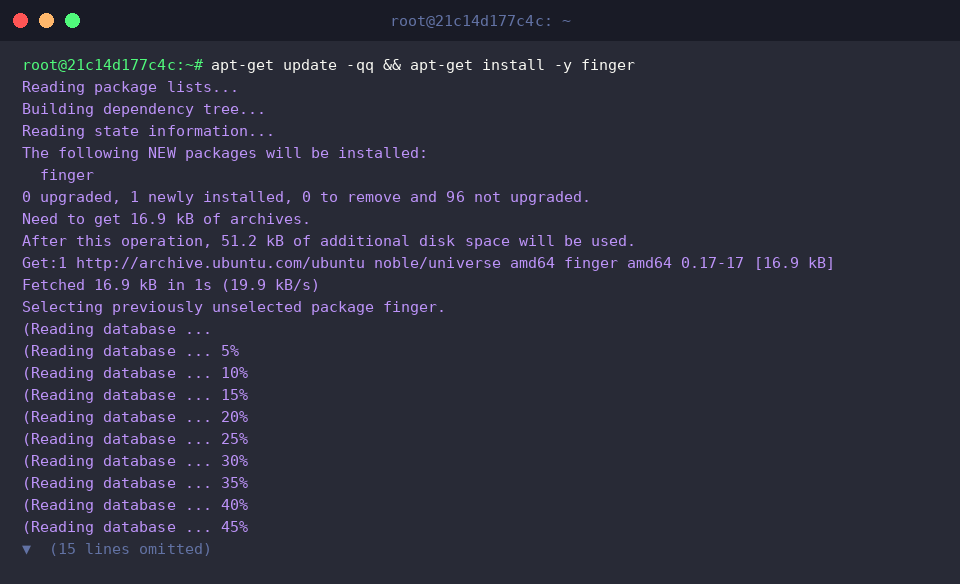
Although raw entries can be inspected in text databases, the classic finger tool formats this data into a structured summary. Install the package using apt-get update -qq && apt-get install -y finger.
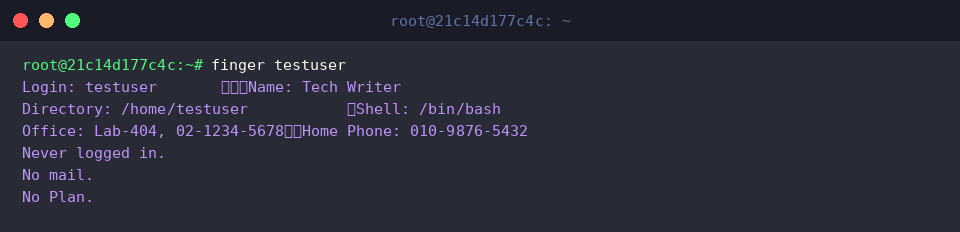
Display the complete profile of the user by running finger testuser.
Rather than parsing raw delimited strings, you receive a cleanly organized summary that highlights the user’s real name, workplace location, office phone extension, and home contact details at a glance.
Modifying Specific Fields Selectively and Cleaning Up
When an employee changes roles or switches office spaces, you do not need to rewrite every single piece of contact info. Adjust only the name and workplace location while leaving existing phone numbers intact by running chfn -f 'DevOps Lead' -r 'HQ-701' testuser.
Any flag omitted during execution remains untouched in the password entry, making selective profile maintenance straightforward and safe.

Confirm that the partial update succeeded without wiping existing telephone data by running grep '^testuser:' /etc/passwd.
The resulting entry confirms that the display name and room ID were updated to reflect the new position, while both previously assigned telephone numbers remain preserved exactly as intended.

After completing the lab exercises, remove the temporary sandbox account along with its home directory by executing userdel -r testuser.

You now have a solid command of managing user identity records and GECOS fields using chfn in Linux. Leveraging these targeted switches ensures clean, automated, and hassle-free account profile administration across your servers.