


Overview
Controlling group permissions accurately is vital for maintaining a secure and collaborative Linux environment. This guide provides a hands-on walkthrough of the chgrp utility on Ubuntu, demonstrating how to modify group ownership across files and directories safely. From core syntax to production-ready techniques like recursive tree updates (-R), configuration cloning via --reference, and handling symlinks (-h), you will learn how to manage access control efficiently.
Understanding chgrp and Updating Single File Ownership
To begin our demonstration, provision a new user group named devteam on the system using sudo groupadd -f devteam.

Next, create an empty test document inside the /tmp directory with touch /tmp/sample_doc.txt.

Inspect the baseline permissions and initial group assignment of this target by running ls -l /tmp/sample_doc.txt.

The chgrp (change group) utility is specifically designed to reassign the group ownership of filesystem objects without touching user ownership.
Assign the document to the newly created group by executing sudo chgrp devteam /tmp/sample_doc.txt.
⚙️ [Essential Command Flags]
-c : Produces diagnostic messages only when an actual change in group ownership occurs.-f : Suppresses standard error output and warnings during execution.-v : Enables verbose mode, showing diagnostic feedback for every file evaluated.-R : Recursively descends through directory hierarchies to update child files and folders.--reference=RFILE : Adopts the group ownership from a template file (RFILE) instead of providing a literal group name.

Confirm that the group column now displays devteam by running ls -l /tmp/sample_doc.txt.

Recursive Group Updates for Directories and Subtrees (-R Option)
To practice updating hierarchical directories in bulk, create a nested folder structure using mkdir -p /tmp/project_dir/sub.

Populate both levels of the directory tree with sample files by running touch /tmp/project_dir/file1.txt /tmp/project_dir/sub/file2.txt.

Before modifying any attributes, review the current ownership structure across the entire tree using ls -lR /tmp/project_dir.
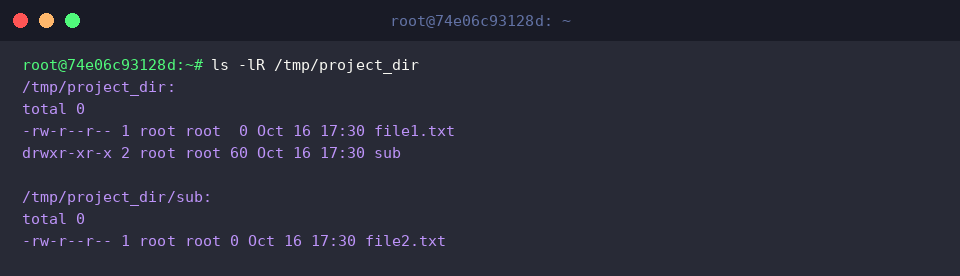
Attaching the -R option instructs chgrp to traverse the directory structure recursively, applying the new group setting to all nested items in one go.
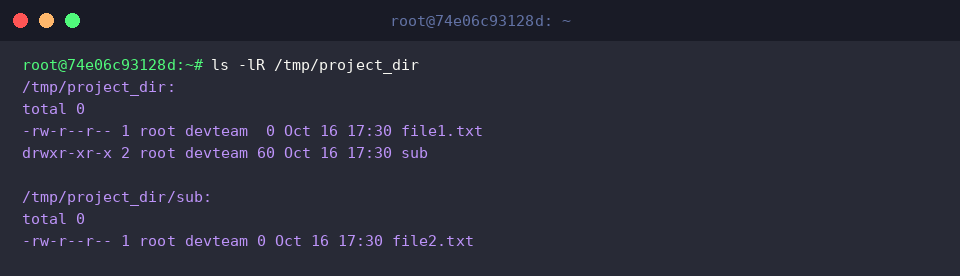
Run sudo chgrp -R devteam /tmp/project_dir to change the group ownership of the directory and all of its contents to devteam.

Verify that the group permissions throughout the nested structure have been updated to devteam by issuing ls -lR /tmp/project_dir.
Cloning Ownership from Another File Using –reference
To demonstrate ownership cloning, prepare a secondary target file with touch /tmp/target_file.txt.

Compare the current group associations of both our source file and the new destination file using ls -l /tmp/sample_doc.txt /tmp/target_file.txt.

Rather than passing an explicit group name, the --reference parameter allows you to duplicate the group attribute directly from an existing model file.
Execute sudo chgrp --reference=/tmp/sample_doc.txt /tmp/target_file.txt to mirror the group assignment of /tmp/sample_doc.txt onto /tmp/target_file.txt.

Check the target file with ls -l /tmp/target_file.txt to confirm that its group has changed to devteam matching the reference source.

Verbose Audit Logs (-v) and Symlink Management (-h)
For this section, create an additional group named qateam by issuing sudo groupadd -f qateam.

Next, create a symbolic link pointing to our original sample document with ln -sf /tmp/sample_doc.txt /tmp/sample_link.

Examine the newly created link and its metadata with ls -l /tmp/sample_link.

Running chgrp with the -v (verbose) flag outputs explicit real-time feedback in the terminal for every file processed.
Execute sudo chgrp -v qateam /tmp/sample_doc.txt to assign the file to qateam while reviewing the printed operation log.

By default, operations targeting symlinks can dereference them and alter the destination file instead. Providing the -h flag instructs chgrp to modify the link pointer itself rather than following it to the target.
Reassign the link directly by running sudo chgrp -h qateam /tmp/sample_link.

Ensure that the symlink itself belongs to qateam by running ls -l /tmp/sample_link.

You now have a practical grasp of using chgrp on Ubuntu to manage group ownership across single files, recursive directory trees, and symbolic links. Leveraging these options will streamline your permission workflows and keep your Linux systems properly organized and secure.