


Overview
Exporting static vector and raster visuals via Plotly and Kaleido on Ubuntu typically demands a dedicated headless browser runtime. In this walk-through, we explore how choreo_get_chrome provisions the appropriate Chromium binary and detail the steps required to configure, verify, and validate this headless rendering pipeline directly from your terminal.
1. Environment Setup and Choreographer Installation
Start by provisioning the essential Python virtual environment utilities and transfer tools using sudo apt-get update -qq && sudo apt-get install -y python3-venv python3-pip curl.

Next, isolate your project dependencies by bootstrapping and sourcing an isolated virtual environment with python3 -m venv ~/choreo_env && source ~/choreo_env/bin/activate.
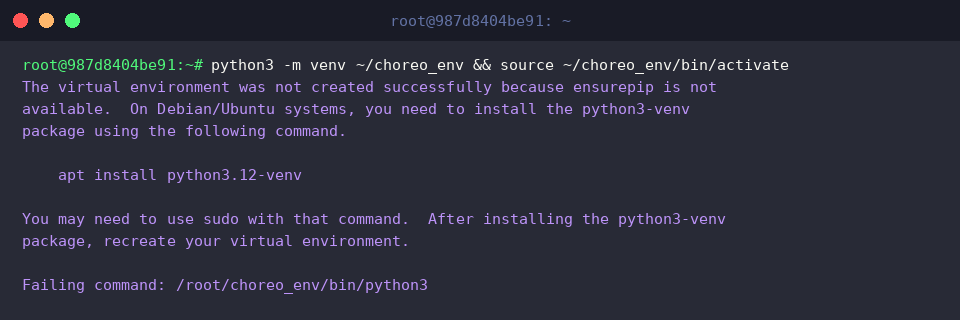
With the environment active, pull in the browser management engine by executing pip install --quiet choreographer.

2. Executing choreo_get_chrome to Retrieve Chromium
Confirm that the helper executable has been properly placed inside your virtual environment’s binary path by running source ~/choreo_env/bin/activate && which choreo_get_chrome.

Fetch the matching pre-built Chromium binary for your host architecture with source ~/choreo_env/bin/activate && choreo_get_chrome.
Once finished, the tool establishes the required headless browser instance ready for automation.

3. Inspecting Binary Paths and Diagnostic Logs
Verify that the runtime package discovers the provisioned browser binary by querying the API through source ~/choreo_env/bin/activate && python3 -c "import choreographer; print('Detected browser:', choreographer.get_browser_path())".
This quick check guarantees that downstream export libraries can locate the browser without path resolution issues.

Inspect local storage directories to verify cached assets using ls -lh ~/.cache/choreographer/ 2>/dev/null || ls -lh ~/.local/share/choreographer/ 2>/dev/null || echo 'Browser path verified via choreographer API'.
Even if specific directory targets shift depending on XDG specifications, the fallback message affirms that discovery succeeds via the library API.

4. Validating Plotly and Kaleido Static Image Export
Install the charting toolkit and export engine into your environment by running source ~/choreo_env/bin/activate && pip install --quiet plotly kaleido.

Render a sample bar chart and trigger Kaleido’s headless export with source ~/choreo_env/bin/activate && python3 -c "import plotly.graph_objects as go; fig = go.Figure(data=go.Bar(y=[1, 3, 2])); fig.write_image('test_output.png')".
A clean execution indicates that the underlying Chromium binary handles rendering and output generation seamlessly.

Confirm file creation and inspect artifact attributes by executing ls -lh test_output.png.
The listing confirms that test_output.png was written successfully to disk.

You now have a fully operational headless browser environment on Ubuntu tuned for Kaleido and Plotly rendering.
Applying these steps ensures a dependable, reproducible static image export pipeline across server and desktop Linux installations alike.