


Overview
When the graphical desktop locks up or unresponsive applications freeze your display on Ubuntu, knowing how to jump into an out-of-band text console is an indispensable troubleshooting skill. The chvt utility provides administrators with a direct mechanism to change active virtual terminals (TTYs) on demand. In this practical walkthrough, we explore how to inspect existing terminal sessions, pinpoint active displays, and navigate between virtual consoles to safely rescue an unresponsive system without pulling the power plug.
Inspecting Current Sessions and Installing Console Utilities
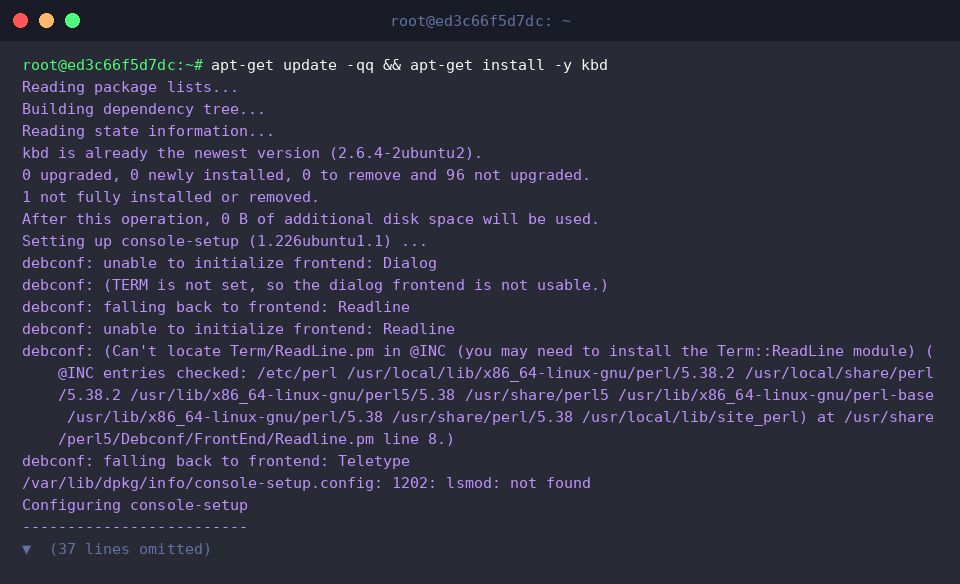
To ensure access to virtual terminal manipulation binaries—including chvt—we pull the essential kbd utility suite via apt-get update -qq && apt-get install -y kbd.
Querying standard input via the tty command reports the path of the associated terminal device file.
When executed in non-interactive pipelines or automated containers, seeing not a tty confirms that no hardware console or pseudo-terminal (pts) driver is bound directly to the current runtime stream.

Running who surveys the machine for logged-in accounts alongside their active communication points.
An empty response verifies that no interactive shell sessions or user logins are currently registered on the target host.

Identifying the Active Virtual Console with fgconsole
Examining command syntax and CLI flags through fgconsole --help clarifies how this helper discovers foreground terminals.

Invoking fgconsole queries the kernel to identify which virtual console currently occupies foreground video output.
A return value of 7 indicates that TTY7—traditionally assigned to Xorg display servers or Wayland desktop sessions—is actively driving the primary monitor display.

Switching Virtual Terminals (TTY) Instantly via chvt
Reviewing parameter options with chvt --help highlights its straightforward argument layout for console navigation.

The chvt (change virtual terminal) command immediately directs the kernel framebuffer to display a designated console index.
Because manipulating hardware video console mappings directly impacts system-wide input and display access, superuser privileges are required.
Executing sudo chvt 1 transitions the screen focus straight into virtual console 1 (TTY1), dropping you into a clean full-screen text login environment.

Emergency Rescue Workflow and Scripting Tips for Desktop Lockups
To automate environment validation during rescue scenarios, we assemble a quick diagnostic script via echo -e '#!/bin/bash\necho "현재 터미널: $(tty)"\necho "콘솔 복구 준비 완료"' > /tmp/check_tty.sh.

We grant execution rights and evaluate the script immediately with chmod +x /tmp/check_tty.sh && /tmp/check_tty.sh.
Testing the output guarantees that your shell detects its active TTY connection and stands prepared for emergency process termination or maintenance work.

This walkthrough highlighted how sysadmins leverage chvt and virtual console switching to manage Ubuntu sessions effectively.
The next time your desktop compositor hangs, resist hard reboots—pivot to an alternate TTY and troubleshoot gracefully from the command line.