


Overview
When working inside a busy Linux command line, console clutter accumulates quickly and hampers productivity. This walkthrough explores everything you need to know about wiping your terminal screen efficiently using clear. We also examine fine-grained buffer management with the -x flag, session recovery via reset, and rapid-fire shortcuts for daily command-line maintenance.
Basic Terminal Cleanup: Getting Started with clear
To simulate a crowded workspace with test data, we run seq 1 10 to print a list of numbers across multiple lines.
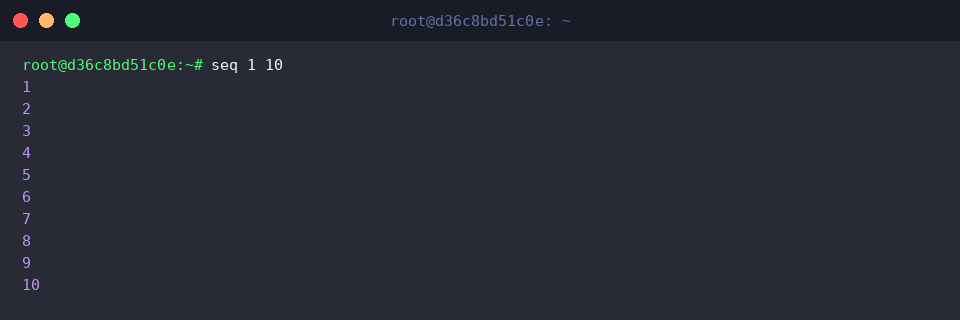
Invoking clear instantly wipes the active console viewport and repositions the cursor directly at the top-left corner of the window.
⚙️ [Key Options]
-x : Wipes the visible canvas while leaving your terminal’s scrollback history completely untouched.-V : Displays the release version and build information for the underlying ncurses clear utility.-T type : Overrides the default environment variable and targets a specified terminal emulation profile (type).

Preserving Your History: Clearing the Screen with clear -x
To demonstrate buffer persistence, we simulate an active debugging session by emitting an essential log header alongside sequential output via echo '=== 보존해야 할 중요 로그 데이터 ===' && seq 1 5.
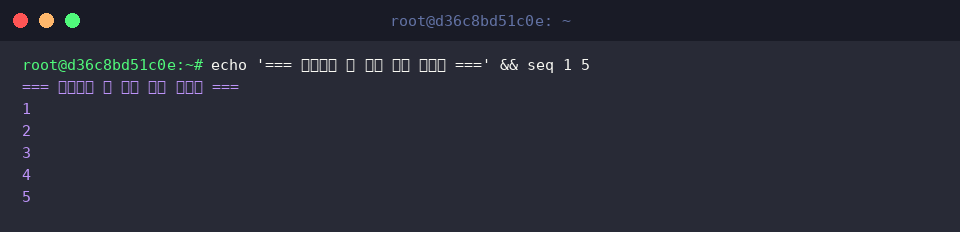
Executing clear -x flushes the currently displayed canvas without purging the terminal’s scrollback log.
Because historical output remains safely tucked away in the upper scroll area, you enjoy a distraction-free prompt while retaining immediate access to past errors, traces, and execution details whenever you scroll up.

Deep Terminal Restoration: Comparing reset and tput
To evaluate behavior against stylized output and unusual terminal states, we first emit a red warning banner using echo -e '\033[31m[경고] 터미널 환경 테스트\033[0m'.

Running tput clear queries the terminfo database to dispatch the precise hardware escape sequences defined for your current terminal profile.
This approach produces a clean screen identical to standard methods while maintaining superior portability across diverse UNIX environments, making it the industry standard for shell scripting.

In contrast, reset reinitializes the serial driver, communication parameters, and internal terminal state from scratch.
If your console gets scrambled after accidentally reading binary files—manifesting as unreadable glyphs or unresponsive keystrokes—running a hard reset restores your session back to a healthy state.

Advanced Shortcuts and Low-Level ANSI Sequences
To verify instant reset controls and escape routines, we display a sample test string by running echo '단축키 및 이스케이프 시퀀스 테스트'.

Executing printf '\033c' broadcasts the RIS (Reset to Initial State) ANSI escape code straight to the terminal emulator.
This low-level trigger immediately wipes active text, drops the scrollback buffer, and re-establishes default color pallets and tab stops, delivering a pristine session in a single stroke.

You now have a complete toolkit for managing and sanitizing your Ubuntu command-line environment.
Integrating these flags, shortcuts, and reset commands into your daily engineering routine will keep your shell tidy and your workflows seamless.