


Overview
As a robust terminal multiplexer, tmux shields long-running processes against unexpected SSH dropouts while empowering developers to carve a single terminal window into versatile multi-pane workspaces. This walkthrough explores the architectural hierarchy behind tmux—spanning sessions, windows, and panes—alongside essential command-line workflows for modern system administration.
1. Installing and Configuring tmux on Ubuntu
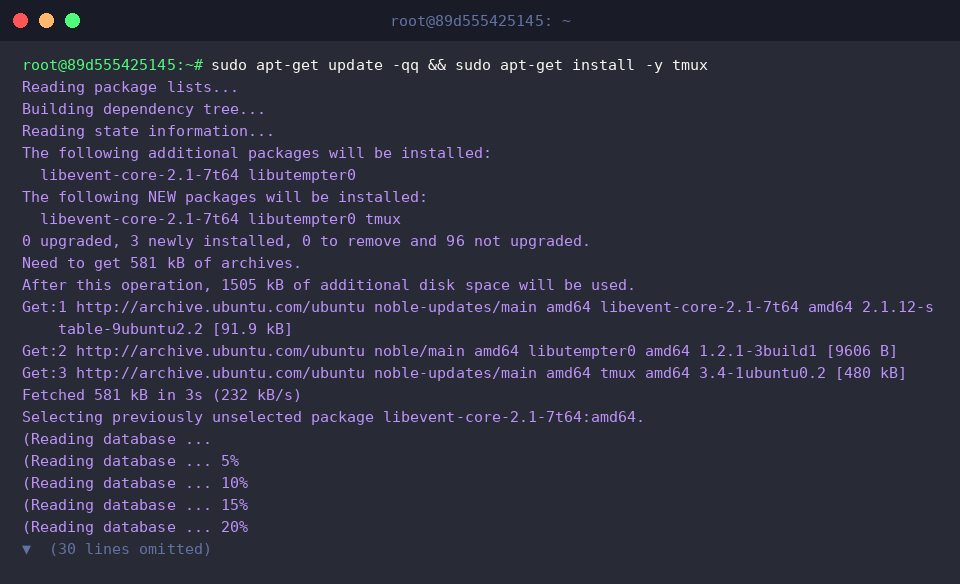
Before diving into hands-on operations, refresh the local APT repository cache and install the tmux binary package using the standard package manager.
Running tmux -V validates the deployment by printing the installed release version to stdout.
⚙️ [Key Runtime Flags]
-V : Reports the current binary release version.-2 : Forces terminal emulation to handle full 256-color palettes.-u : Explicitly enables UTF-8 character encoding support.-f : Overrides the standard configuration file with a custom configuration path.-L : Specifies an isolated socket name to run independent tmux server instances.

2. Creating and Managing Background Sessions
Executing tmux new-session -d -s work-session spins up an independent workspace labeled work-session entirely in the background.
Thanks to the detached (-d) flag, the multiplexer avoids hijacking your active terminal prompt, allowing you to prepare dedicated background environments without interrupting your ongoing shell workflow.

The command tmux new-session -d -s monitor-session 'top' constructs a detached environment titled monitor-session that immediately bootstraps the interactive top process upon launch.
This capability proves invaluable when provisioning persistent performance monitoring utilities or standalone services that should fire up instantly inside a preserved session rather than an interactive shell.

Issuing tmux list-sessions scans the active server instance and enumerates all operational sessions alongside their availability status.
The resulting output confirms that both background environments—monitor-session and work-session—are up and running seamlessly, each housing a single initial window.

3. Splitting Windows, Creating Panes, and Inspecting Hierarchy
Running tmux split-window -t work-session -h bisects the active window inside work-session horizontally into side-by-side panes.
This horizontal split organizes the workspace into adjacent columns, placing a fresh interactive terminal session alongside your original console.

The tmux split-window -t work-session -v command further subdivides the targeted pane vertically into upper and lower segments.
By slicing the current partition vertically, the window topology expands into an ergonomic layout comprised of three isolated, functional panes.

Querying tmux list-windows -t work-session displays the window inventory and geometric layout metadata mapped to work-session.
Here, window index 0 (bash) is shown managing 3 panes across a multi-tiled grid while maintaining its designated active state.

To drill down into each segment’s runtime parameters, tmux list-panes -t work-session exposes granular diagnostics for every pane in the session.
The output details the geometric dimensions and internal handles (%0, %2, %3) for panes 0, 1, and 2, highlighting pane 2 as the presently targeted active viewport.

4. Remote Input Injection and Clean Session Teardown
With tmux send-keys -t work-session.0 'echo "tmux background execution test"' C-m, keystrokes and an Enter keypress (C-m) are programmatically dispatched directly into pane index 0 of work-session.
This mechanism makes headless interaction effortless, enabling automated command dispatching into detached processes without ever attaching your active terminal to the target session.

The tmux capture-pane -pt work-session.0 instruction extracts the raw textual buffer from pane 0 of work-session and streams it directly to your standard output.
Inspecting this dump confirms that the remote echo invocation was successfully evaluated and its standard output string rendered cleanly on the virtual terminal screen.

Invoking tmux kill-session -t work-session dismantles the designated work-session alongside all subordinate windows and pane processes.
Gracefully tearing down finished sessions ensures idle shell instances release allocated system resources and memory back to the operating system.

When you need a complete cleanup, tmux kill-server terminates the master daemon process, tearing down every running session concurrently across the host.
This operation sweeps away all remaining background sessions in one shot, resetting the server environment back to an uninitialized state.

The chained probe tmux ls 2>&1 || echo '모든 tmux 세션이 정상 정리되었습니다.' verifies that no lingering sessions or background daemons remain active.
Because the absence of an operational server triggers a non-zero exit code, the fallback echo statement fires automatically, providing clear visual confirmation of a spotless cleanup.

Mastering tmux fundamentally transforms how you navigate remote systems, safeguarding persistent routines while dramatically optimizing terminal screen efficiency. Integrating these foundational commands and shortcuts into your daily workflow will establish a resilient, highly productive Linux console environment.