


Overview
Working on remote Ubuntu instances over SSH always carries the risk of broken network pipes, which can prematurely terminate critical operations like builds, backups, or database updates. GNU Screen mitigates this vulnerability by decoupling interactive command execution from the underlying SSH connection. This practical guide covers essential administration workflows: initializing persistent sessions, launching silent background workers, flushing dead sockets, and tuning .screenrc for a smoother terminal experience.
Installing Screen, Creating Sessions, and Listing Instances
To prepare the operating system for terminal multiplexing, refresh the APT package indices and pull the screen utility from the canonical repositories.
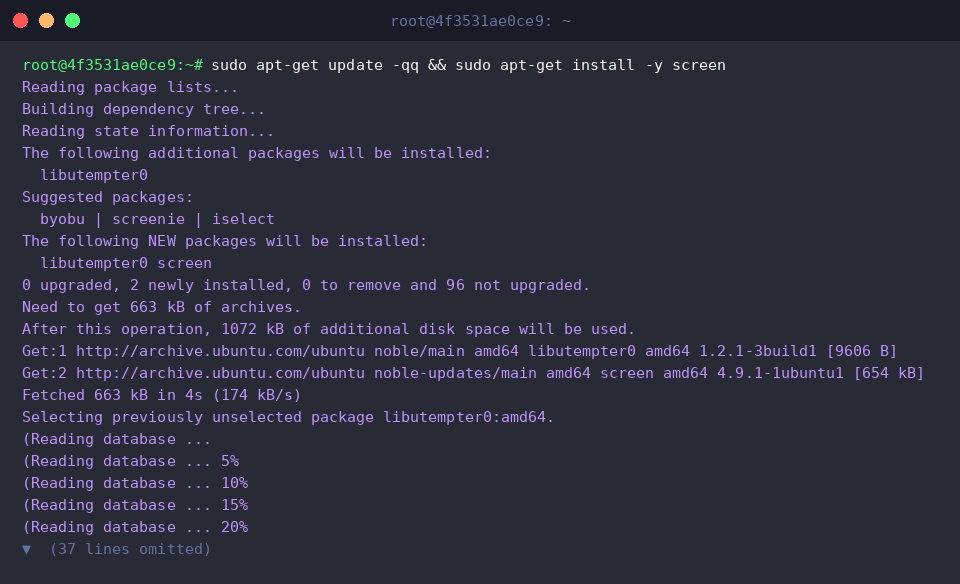
Verify that the binary compiled cleanly and is ready for use by querying its release version with screen -version.
⚙️ [Essential Command Flags]
-S : Assigns a distinct, user-defined name to identify the target session.-ls : Queries and enumerates all active Screen sockets alongside their attachment status.-d : Detaches an active terminal session into the background without interrupting running processes.-m : Enforces the spawning of a new session, frequently leveraged to daemonize standalone commands.-r : Reattaches an orphaned or detached background session back to the interactive foreground.-wipe : Scans for dead sockets left behind by crashed processes and clears them from the socket directory.

Running screen -S backup_task -d -m sleep 60 instantiates a named session that runs immediately in detached mode without taking over the current shell prompt.
Combining -S backup_task with -d -m instructs Screen to run sleep 60 fully isolated in the background from the moment of creation.

Check the status of all terminal sessions currently registered with the local socket manager by invoking screen -ls.
The output verifies that backup_task is actively running under its unique PID in a Detached state.

Launching Background Tasks and Monitoring Execution
To track and verify asynchronous execution, set up a dedicated workspace directory and populate a base log file using mkdir -p ~/screen_demo && echo '작업 준비 완료' > ~/screen_demo/task.log.

Execute an iterative bash routine silently inside a persistent worker using screen -S build_job -d -m bash -c 'for i in {1..5}; do echo "진행 단계: $i" >> ~/screen_demo/task.log; sleep 1; done'.
The -S build_job parameter names the socket, while -d -m dispatches the sequential logging loop to run independently in the background.

Confirm session coexistence by checking the process socket list with screen -ls.
The terminal output validates that both the newly scheduled build_job and the previous backup_task are running concurrently in detached states.

To verify that the background worker is appending updates as expected, inspect the destination file with sleep 2 && cat ~/screen_demo/task.log.
The emitted log lines confirm that the loop continues uninterrupted, incrementing its steps within the background environment.

Managing Session Lifecycles and Cleaning Up Dead Sockets
To simulate session termination and cleanup handling, spawn a mock process using screen -S zombie_task -d -m sleep 100.
Assigning -S zombie_task alongside -d -m spins up a 100-second sleep process entirely off-screen.

A quick review via screen -ls confirms that three distinct sessions are currently active and running in the background.
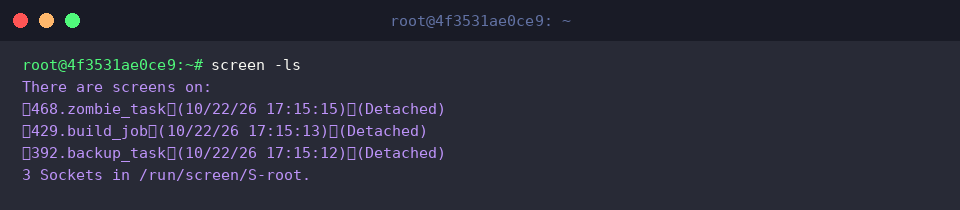
Rather than attaching interactively just to close a shell, send a remote termination signal directly from the host command line with screen -S zombie_task -X quit.
Targeting -S zombie_task with the -X quit command terminates the encapsulated process and closes the associated Screen socket cleanly.

When network drops or killed processes leave stale socket descriptors behind, run screen -wipe to sweep the socket tree.
The utility automatically discovers unreachable sockets, prunes them, and reports back the remaining healthy sessions (build_job and backup_task).

Re-evaluate system state with screen -ls to guarantee socket integrity.
The clean session listing confirms that the terminated entry has been purged, leaving only active instances intact.

Expanding Scrollback Buffers and Customizing screenrc
To persist custom runtime preferences across future invocations, generate an individual user configuration file with touch ~/.screenrc.

By default, Screen retains a minimal terminal history. Increase the buffer capacity to 5,000 lines using echo 'defscrollback 5000' >> ~/.screenrc to prevent verbose compile logs from rolling off the screen.

Improve situational awareness across multiple windows by appending a persistent bottom status bar: echo 'caption always "%{= kw}%-w%{= wk}%n %t%{-}%+w = %H"' >> ~/.screenrc.

Inspect the configuration modifications using tail -n 2 ~/.screenrc.
The displayed lines confirm that both the expanded scrollback limit and the bottom caption bar are safely recorded in the dotfile.

Leveraging GNU Screen on Ubuntu safeguards mission-critical command pipelines from unstable remote connections. Adopting detached workers and tuning .screenrc creates a reliable, interruption-proof foundation for managing production infrastructure and long-running scripts.