


Overview
Skip the dense manual pages and jump straight into hands-on terminal monitoring with htop. This practical walkthrough guides you through dynamic CPU and memory tracking, real-time process filtering, hierarchy inspection with tree views, and granular resource management techniques.
Installing htop and Exploring Core Command Options
Begin by refreshing local package repositories and installing the monitoring suite onto your Ubuntu system.
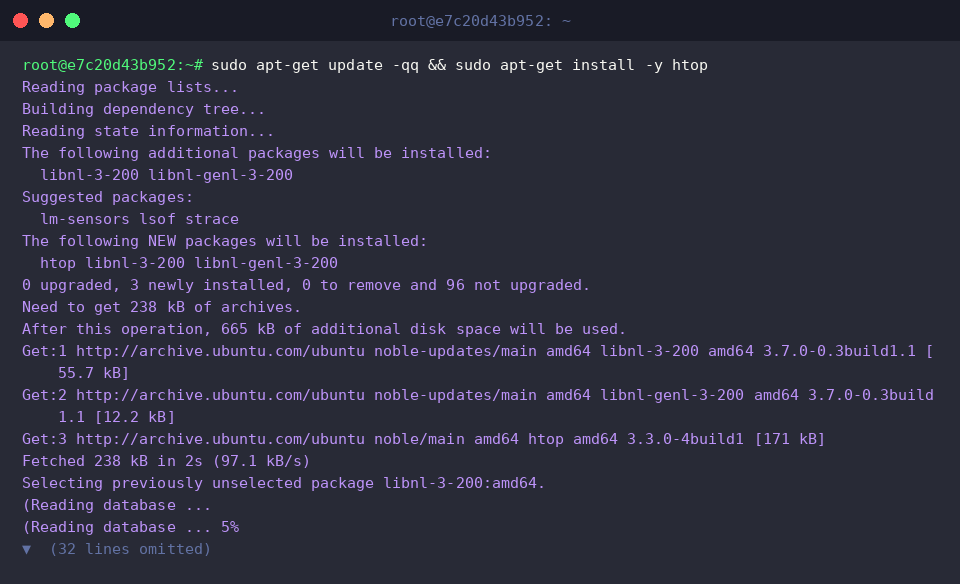
Verify that the installation completed successfully by checking the deployed utility release with htop -v.

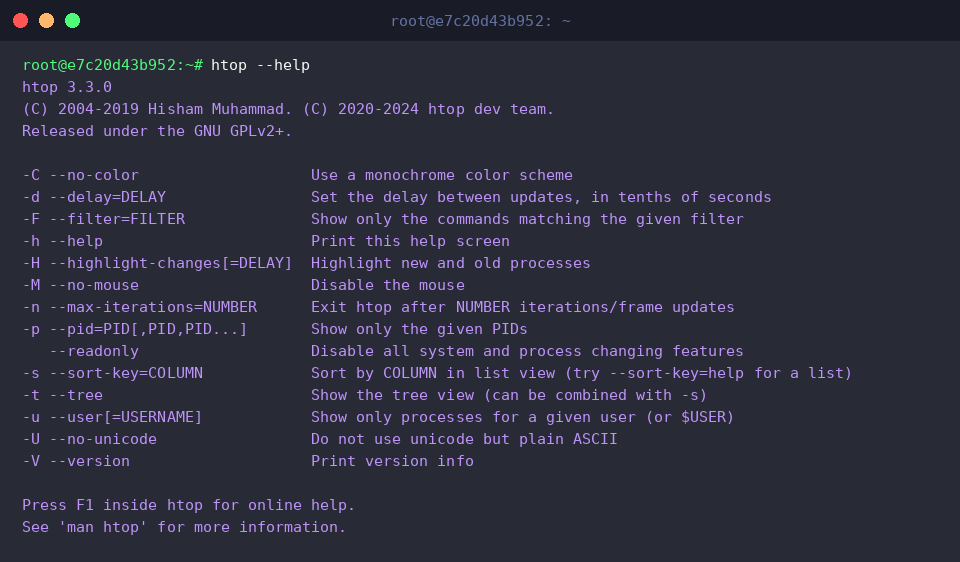
Inspect available invocation arguments and command-line switches by triggering htop --help.
⚙️ [Core Flags]
-d : Sets the screen refresh interval in tenths of a second.-p : Restricts real-time tracking strictly to designated process IDs (PIDs).-u : Isolates display metrics to processes launched by a specific username.-s : Sorts the active process table according to a chosen metric column.-t : Renders parent-child process relationships in a clear tree hierarchy.-C : Disables colorized terminal output for high-contrast monochrome mode.-F : Filters active entries matching a specified command string.
Managing Background Jobs: PID Targeting and Process Tree Views
To simulate an active target for observation, spawn a background job scheduled to idle for 300 seconds using sleep 300 &.

Retrieve the numeric process identifier of the newly detached task with pgrep sleep.

Focus the monitoring session exclusively on the target instance by running htop -p $(pgrep -d',' sleep).
Filtering the workspace down to chosen PIDs allows administrators to analyze resource consumption without distracting background noise.

Switch to a structural visual representation of process lineages by launching htop -t.
This hierarchical display reveals at a glance how background workers and threads originate from their respective parent processes.

Isolating User Activity and Sorting by System Resource Usage
Limit the process view to tasks owned by your current user session with htop -u $(whoami).
Filtering out daemon threads and root services helps you concentrate on user-level executions and active terminal workloads.

Reorder the process table dynamically based on memory footprint using htop -s PERCENT_MEM.
Pinpointing high-memory consumers at the top of the interface provides fast triage during memory contention issues.

Evaluate processor demands across running jobs by launching htop -s PERCENT_CPU.
Surfacing CPU-intensive threads ensures rapid identification of processes driving up overall system load averages.

Controlling High-Load Tasks: Tuning Nice Values and Terminating Jobs
Generate an artificial processing load for throttling exercises by spinning up an unthrottled loop and capturing its PID.

Throttle the process scheduler priority by increasing its nice rating to +10 via renice +10 -p $TEST_PID.
Adjusting this priority level from baseline 0 up to 10 ensures the intensive task yields CPU execution time to essential system operations.

Conclude the exercise by issuing a graceful termination request (SIGTERM, -15), followed by a force kill (SIGKILL, -9) if the thread does not shut down cleanly.
This routine guarantees that runaway tasks are terminated safely and allocated compute resources are promptly restored.

From navigating core dashboard layouts to executing precise process management commands, htop provides modern Linux administrators with unmatched terminal visibility. Incorporate these interactive monitoring techniques into your regular operations to maintain optimal server performance and stability.