


Overview
While the traditional top utility has served system administrators for decades, its text-heavy interface often makes rapid troubleshooting cumbersome. Enter htop, an enhanced, interactive system viewer that delivers real-time resource telemetry through color-coded visual metrics. This guide walks you through setting up htop on Ubuntu, fine-tuning display intervals, isolating account-specific workloads, sorting by resource consumption, and inspecting hierarchical process trees.
Installing htop and Inspecting Binary Flags
Begin by synchronizing the local APT repository cache and deploying the htop package onto your Ubuntu installation.
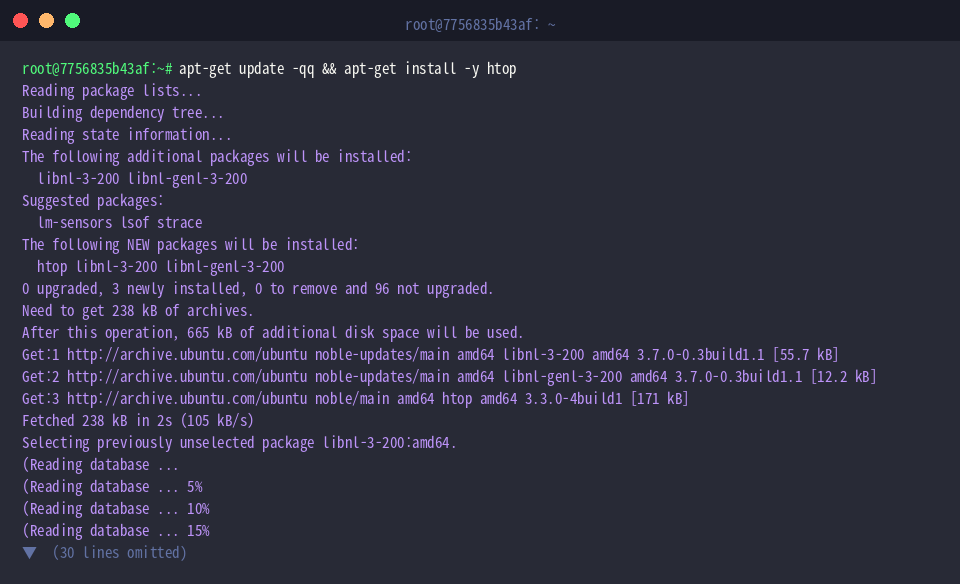
Verify successful deployment and check release build details with htop --version.
⚙️ [Essential CLI Flags]
-d : Adjusts screen polling frequency (expressed in tenths of a second).-p : Restricts monitoring to specified Process IDs (PIDs).-u : Filters displayed tasks by the target username.-t : Renders running tasks in an indented parent-child tree hierarchy.-C : Suppresses colorized terminal output in favor of monochrome mode.-v : Displays version metadata and build details.

Launching Real-Time Telemetry with Custom Polling Rates
Launch an active inspection session using htop -d 10, which enforces a 1-second update cycle (10 tenths of a second).
The live dashboard tracks per-core CPU utilization, memory allocations, and task queues dynamically on a 1-second cadence, giving you an immediate view of shifting server loads.

User Filtering and Pinpointing Memory Bottlenecks
Execute htop -u root to scope the monitoring interface exclusively to processes initiated by the administrative user.
This narrowed view eliminates userland background noise, letting you focus directly on core OS services, privileged background daemons, and system-level operations.

Sort your active process table by physical memory footprint by executing htop -s PERCENT_MEM.
Workloads with the heaviest RAM consumption are instantly promoted to the top of the queue, making it straightforward to catch memory leaks and runaway services before they trigger kernel OOM events.

Inspecting Process Hierarchies and Isolating Individual PIDs
Use htop -t to visualize all system activity as an expandable tree structure showing parent and child relationships.
This structural layout clarifies which supervisor daemons spawned worker processes or execution threads, streamlining dependency analysis during incident response.

Target a single high-priority service by passing its process identifier, such as htop -p 1 for the root initialization manager (systemd).
Filtering down to a single PID lets you observe targeted CPU, thread, and memory behaviors without distraction from broader system workloads.

You now have a practical grasp of deploying and operating htop for live process diagnostics on Ubuntu. Leverage these inspection options whenever you need fast, interactive visibility into server resource contention and task execution.