


Overview
Efficient file bundling and archive distribution remain foundational skills in daily Linux server administration. While Linux offers multiple compression utilities, .zip stands out for its universal cross-platform interoperability across Windows, macOS, and Unix distributions. This walkthrough covers practical implementations of the zip and unzip command suites in Ubuntu—ranging from package provisioning and multi-file packaging to recursive folder compression, destination-directed extractions, pattern-based exclusions, and password encryption.
Installing Archive Utilities and Creating Basic Archives
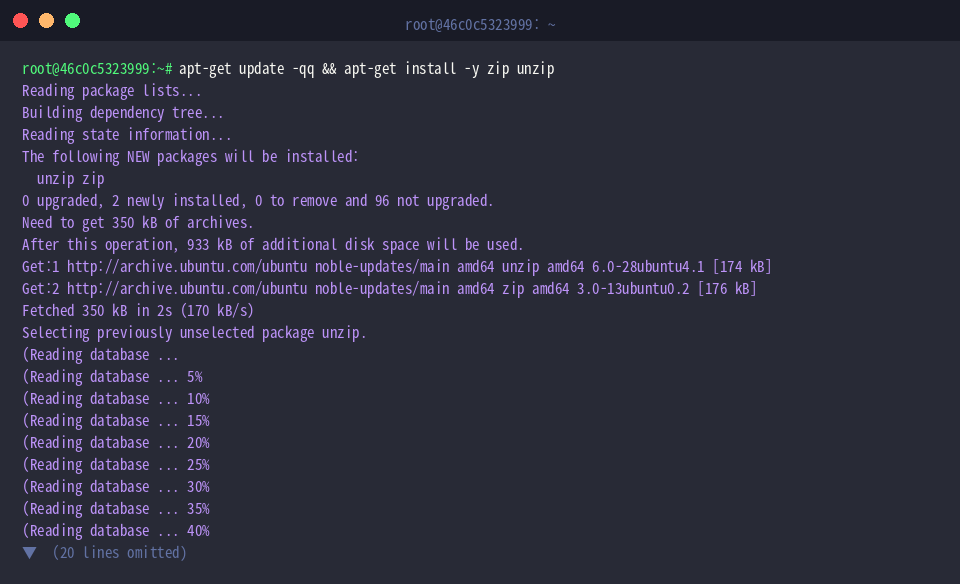
Modern minimal Ubuntu cloud images frequently omit compression binaries out of the box. Refresh your local package cache and provision both zip and unzip by running apt-get update -qq && apt-get install -y zip unzip:
Set up an isolated workspace for hands-on testing by executing mkdir -p ~/zip_demo && cd ~/zip_demo:

Populate the workspace with our first mock dataset using echo "Sample text file 1" > file1.txt:

Generate an additional payload file via echo "Sample text file 2" > file2.txt so we can demonstrate multi-source packaging:

The zip command bundles multiple discrete paths into a consolidated archive. By passing archive.zip followed by file1.txt and file2.txt, the utility compresses both targets into a single portable package.
⚙️ [Key Command Flags]
-r : Traverses nested folder hierarchies recursively to capture all enclosed contents.-e : Prompts interactively for a passphrase to apply standard zip-level symmetric encryption.-u : Synchronizes existing archives by appending new targets or updating modified files.-m : Moves assets into the archive by automatically purging original source files upon successful packaging.-d : Prunes specific matching elements directly out of an established archive.-q : Activates quiet mode, suppressing standard verbose output during pipeline operations.-0 ~ -9 : Adjusts compression ratios, ranging from zero storage compression (-0) to maximum Deflate compression (-9).

Inspect the generated archive.zip metadata and disk footprint using ls -lh archive.zip:

Recursive Directory Compression (-r) and Tuning Compression Levels (-9)
To practice handling structured project trees, navigate back into your staging area with cd ~/zip_demo:

Construct a realistic two-tier folder tree containing application code and service logs by running mkdir -p project/src project/logs:

Stage an application entry point with echo "console.log('App running');" > project/src/app.js:

Generate an accompanying server log record with echo "System initialized" > project/logs/app.log:

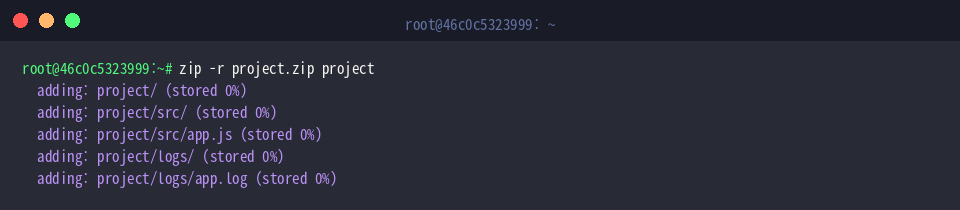
Unlike flat file lists, directories require the -r recursive flag so that subtrees and nested assets are preserved. Execute zip -r project.zip project to package the entire tree into project.zip:
The terminal output confirms every relative branch—from intermediate directories down to nested payloads—has been systematically cataloged.
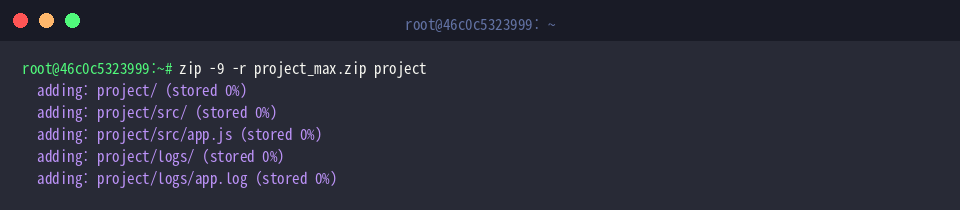
When network bandwidth or remote storage limits take priority over processing speed, append -9 alongside -r to enforce the highest compression ratio:
Run zip -9 -r project_max.zip project to produce an aggressively compressed package:
Compare the resulting archive footprints side-by-side using ls -lh project*.zip:

Inspecting Archive Tables of Contents (-l) and Custom Destination Extraction (-d)
Ensure you are stationed in the correct root directory with cd ~/zip_demo:

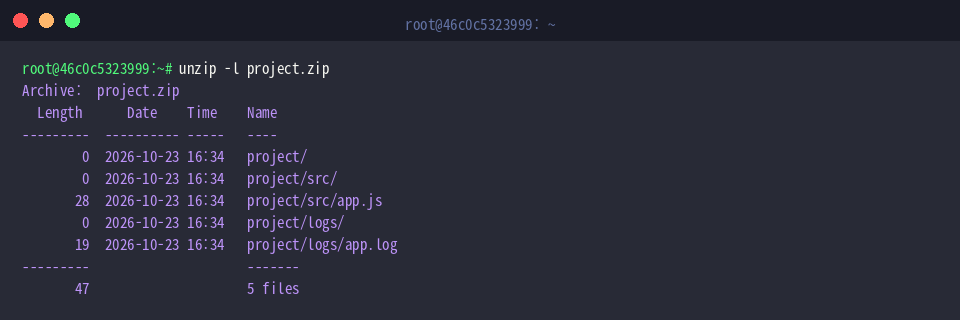
Extracting unfamiliar archives blindly into a production path risks file clobbering. Instead, audit the package contents beforehand using the -l listing flag: unzip -l project.zip prints the internal file structure, uncompressed sizes, and timestamps without writing to disk.
Prepare a clean destination directory to isolate the extracted files by running mkdir -p ~/zip_demo/extracted:

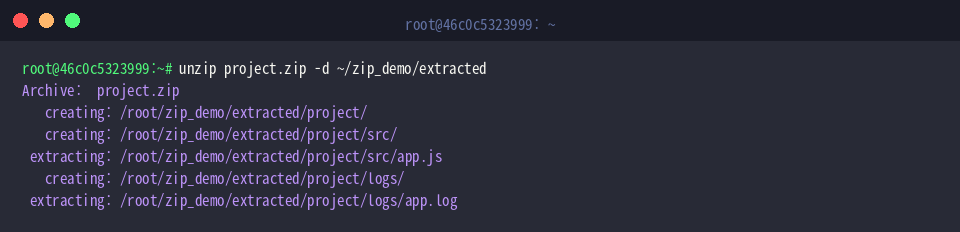
To prevent cluttering your current working directory, pipe the target location using the -d option: unzip project.zip -d ~/zip_demo/extracted extracts all files securely into the designated folder.
The execution logs confirm that the directory hierarchy was regenerated cleanly inside the target path.
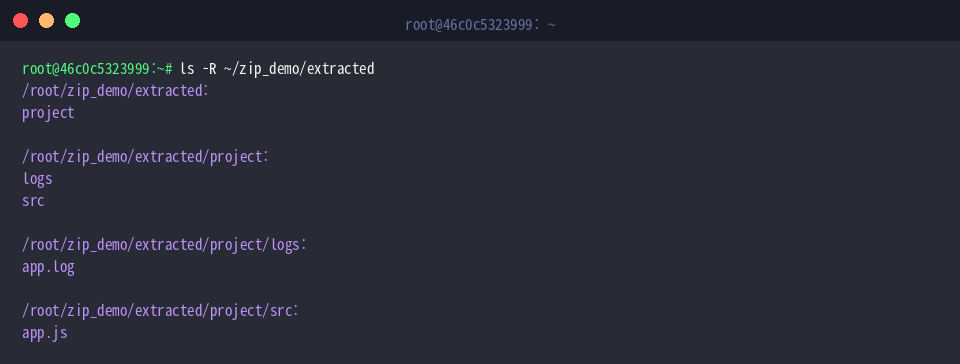
Confirm that the folder structure and permissions unpacked faithfully by reviewing the tree via ls -R ~/zip_demo/extracted:
Pattern-Based Exclusions (-x) and Password-Protected Encryption
Return to your staging root with cd ~/zip_demo:

In production deployments, you often want to omit transient files like .log, .env, or caches. Pass the -x parameter alongside a pattern wildcard: zip -r project_no_logs.zip project -x "*.log" packages the project directory while stripping any log files from the final archive.

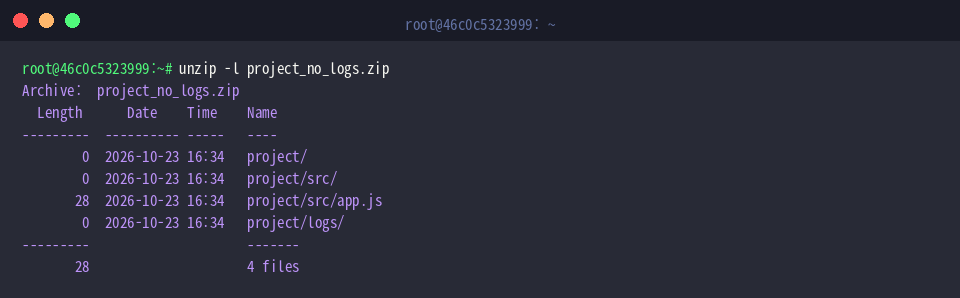
Verify that your exclusion rule succeeded by checking the archive index with unzip -l project_no_logs.zip:
The output demonstrates that while the directories and app.js remain, app.log was omitted from the archive.
When packaging sensitive assets for transmission, supply a security key with the -P flag. Running zip -P SecurePass123! -r project_encrypted.zip project/src locks the resulting bundle with standard passphrase encryption.
The console logs show that the source tree was encrypted during the compression stream.

Review the full catalog of generated archives in your workspace by issuing ls -lh project_*.zip:

With these core techniques in hand—from basic packaging and recursive flag management to path-targeted decompression, selective filtering, and encryption—you can comfortably automate file archiving tasks directly within any Ubuntu terminal environment.