


Overview
Running low on server storage requires fast, clear insights into which files and directories are consuming excessive disk space. While standard tools like du get the job done, visual text-based interfaces provide a much faster way to drill down into resource-heavy folders. This walk-through covers installing, configuring, and working with ncdu (NCurses Disk Usage)—a fast, interactive terminal utility designed to simplify storage audits on Ubuntu systems.
Installing ncdu and Checking CLI Options
Get started by synchronizing the local APT repository cache and pulling down the ncdu package via the command line.
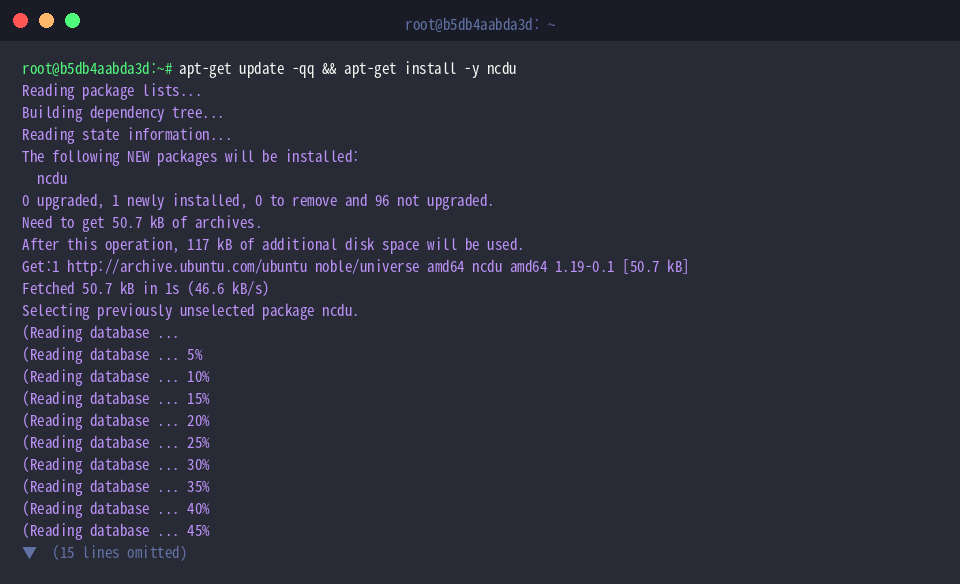
Once the setup completes, verify the binary and review the core flags available for controlling runtime behavior.
⚙️ [Essential Flags]
-v : Displays the installed version string and build details.-x : Confines the directory traversal to a single filesystem, avoiding mounted drives or network shares.-r : Enforces read-only mode to safeguard against unintended file deletions during interactive navigation.-q : Lowers screen refresh rates to accelerate scanning over remote SSH sessions or large storage volumes.-o : Dumps the raw filesystem scan results into an external archive file.-f : Imports a previously exported scan snapshot into the interactive browser.

Creating Sample Directories and Dummy Files for Hands-on Testing
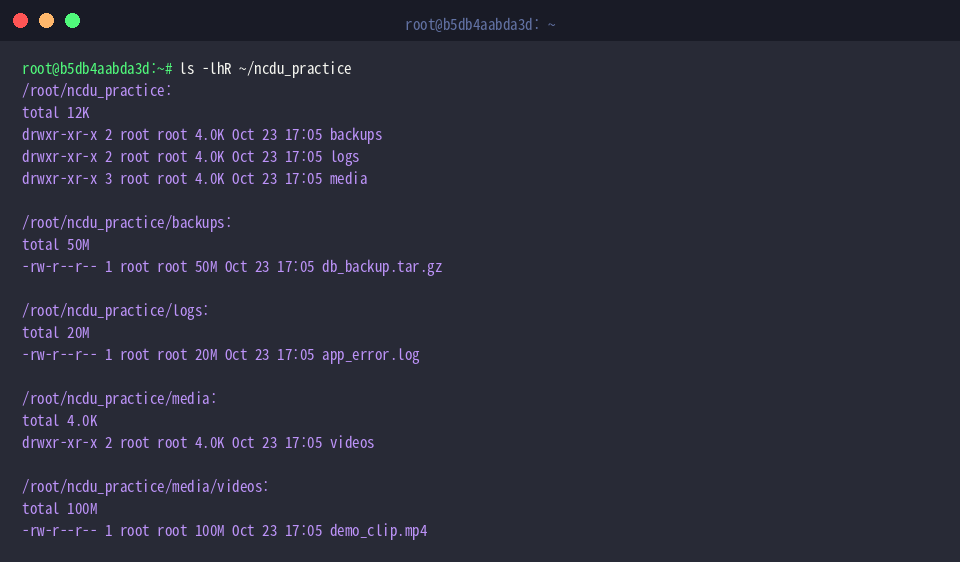
To safely experiment with directory navigation and size detection, set up a dedicated nested hierarchy using mkdir -p ~/ncdu_practice/{logs,backups,media/videos}.

Next, allocate a dummy 20MB file inside the logs folder with fallocate -l 20M ~/ncdu_practice/logs/app_error.log to simulate log aggregation.

Populate the backups directory with a 50MB archive using fallocate -l 50M ~/ncdu_practice/backups/db_backup.tar.gz.

Add a larger 100MB video asset to media/videos by issuing fallocate -l 100M ~/ncdu_practice/media/videos/demo_clip.mp4.

Confirm that all directories and sample payloads were created properly with human-readable sizes by executing ls -lhR ~/ncdu_practice.
Navigating and Inspecting Disk Footprints Interactively with ncdu
Launch the interactive scanner on the mock workspace using ncdu -q ~/ncdu_practice, applying the quiet UI flag to minimize render overhead.
The ncurses interface organizes folders and individual files descending by storage consumption, allowing administrators to pinpoint large disk hogs in seconds using simple arrow-key navigation.

To investigate standard system logs without accidentally walking across separate partitions or temporary mounts, invoke ncdu -x /var/log.
Limiting the scan scope to the local filesystem prevents stalls across remote NFS or loop devices, giving you an accurate picture of what is filling up /var/log.

Exporting Scan Reports for Offline Remote Inspection
On production machines where interactive terminal sessions are inconvenient, capture the directory profile directly into a portable JSON dump using ncdu -1xo- ~/ncdu_practice > ~/ncdu_practice/disk_usage.json.
Combining single-line progress reporting (-1) with standard output redirection (-o-) provides a seamless way to record audit logs without locking up the terminal interface.

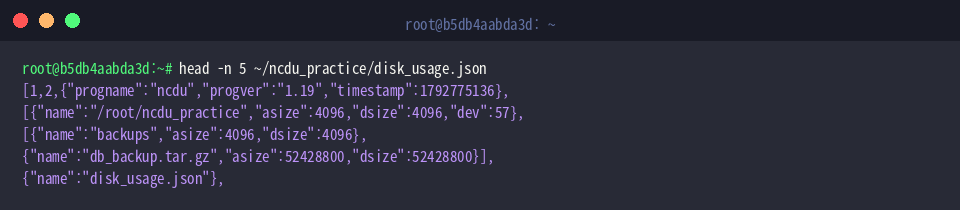
Inspect the initial structure of the exported snapshot by viewing the top records with head -n 5 ~/ncdu_practice/disk_usage.json.
The file encapsulates tool metadata, generation timestamps, and serialized path trees alongside exact byte allocations.
Whenever you need to inspect the disk state offline without generating extra I/O on the host, launch ncdu -f ~/ncdu_practice/disk_usage.json.
Because the data is loaded directly from disk, you can browse directory trees and analyze footprints instantly without repeating an intensive filesystem scan.

Using ncdu transforms storage troubleshooting from slow, manual script digging into a rapid, visual workflow. Incorporate these scanning and export techniques into routine server maintenance to keep Linux filesystem usage under control and resolve disk saturation alerts before they disrupt services.