


Overview
Gain immediate visibility into the Linux kernel’s Netfilter connection tracking subsystem using ctstat. This practical walkthrough covers foundational operations and production workflows, giving systems administrators the tools needed to detect traffic spikes, spot connection table leaks, and avoid state exhaustion.
Setting Up Prerequisites and Loading the Conntrack Module
Begin by provisioning the necessary toolsets. Install the standard iproute2 suite—which provides ctstat—along with the companion conntrack utility for low-level session inspection:
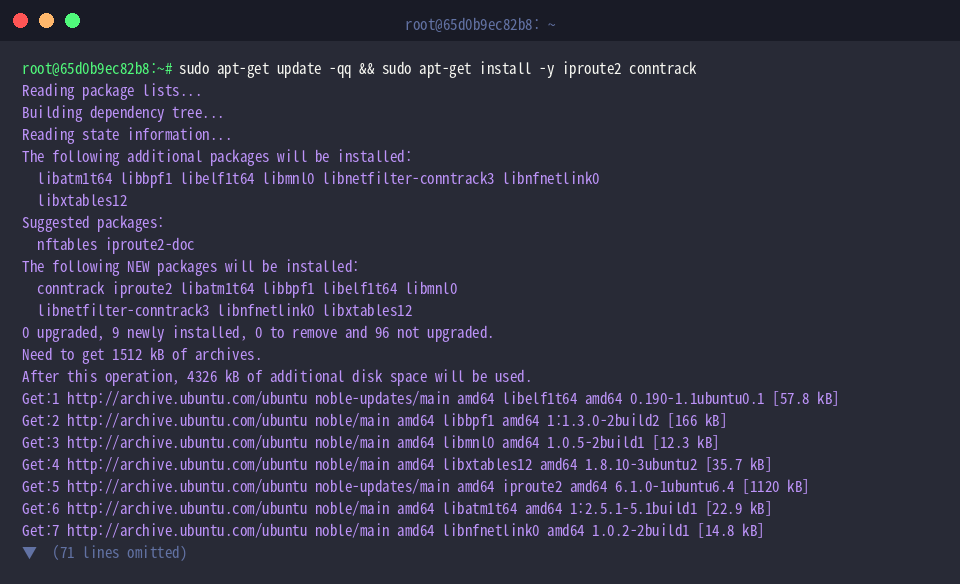
Next, insert the Netfilter tracking driver into the running kernel so stateful session data can be recorded and aggregated:

Confirm that the binary is discoverable within your environment’s executable path by running which ctstat.
Packaged as part of iproute2, ctstat polls connection tracking accounting counters directly from the kernel at configured intervals.
⚙️ [Primary Command Flags]
-c, --count : Terminates the monitoring session after rendering the requested number of sample intervals.-i, --interval : Sets the refresh cadence in seconds.-h, --help : Outputs command syntax along with available switches.-V, --version : Displays binary release and version metadata.

Inspecting Built-in Help and Capturing Baseline Snapshots
To review all supported parameters and execution flags, query ctstat --help.
This built-in documentation provides a quick reference for tuning polling rates and adjusting reporting formats.

When an ongoing, interactive terminal stream is unnecessary, capture an instantaneous point-in-time snapshot with ctstat -c 1.
Restricting the cycle count to one prints the current metrics once and immediately returns control to the shell.

Polling Metrics at Scheduled Intervals and Observing Traffic Deltas
Track metric shifts over time by combining interval and count limits using ctstat -i 2 -c 3, which takes three snapshots spaced two seconds apart:
The command collects status updates across the defined window before shutting down automatically.

To observe changes in table activity, trigger an outbound network connection using curl -s https://www.google.com > /dev/null:

Evaluate counter updates following the request by executing ctstat -i 1 -c 2.
Sampling twice with a one-second pause exposes the session table increments introduced by the new outbound connection.

Isolating Key Conntrack Metrics and Validating Against Procfs
Streamline terminal output by isolating specific columns of interest with ctstat -k entries,searched,found -c 2.
Hiding superfluous data points allows engineers to concentrate directly on current active session volumes (entries) and table lookup operations (searched, found).

Cross-verify user-space telemetry with direct kernel accounting by reading /proc/sys/net/netfilter/nf_conntrack_count:
Comparing this raw sysctl counter against the entries column in ctstat ensures that reported table counts reflect ground-truth session quantities inside Netfilter.

With ctstat, tracking connection states and kernel table health becomes straightforward. Incorporating these commands into your diagnostic toolkit enables proactive capacity planning and swift troubleshooting during firewall congestion or high-traffic incidents.